Table of Contents
• Introduction
• Feature 1: Globalization at App domain level
• Feature 2: Access to a collection outside of the UI thread
• Soure code
Introduction
The purpose of this article series is to demonstrate some new features of WPF and
.NET 4.5 framework with simple examples. Complete list of .NET 4.5 new features
can be read at following link:
http://msdn.microsoft.com/en-us/library/bb613588.aspx
I will demonstrate few new features with sample applications so we can understand
the concept.
Feature 1: Globalization at App domain level
Threads in .NET applications get their default culture and UI culture when it is
created by Windows OS. This culture settings comes from OS's Regional and
Language settings. Prior .NET 4.5 days, following piece of code is what we developers
used for setting UI culture for given thread in application.
CultureInfo culture = new CultureInfo("fr-FR");
Thread.CurrentThread.CurrentCulture = culture;
Thread.CurrentThread.CurrentUICulture = culture;
Listing 1.0 – Setting default culture and UI Culture in C#
Now think about multithreaded application. In multithreaded application, you have
to use the code shown in Listing 1.0 for each thread/task that is created. The
CultureInfo class in .NET 4.5 includes very simplified way of setting default
culture and UI culture for an application domain thus saves us from writing code
for each thread/task.
The CultureInfo.DefaultThreadCurrentCulture property is used to set the default culture
for any newly created threads, and the CultureInfo.DefaultThreadCurrentUICulture
property is used to set the default culture for the UI thread. Once we set default
culture and UI culture this way, it becomes applicable at application domain
level and hence becomes default for every thread/task created inside that application
domain. This saves us writing from redundant code of setting culture for each
thread that we create. To demonstrate this, I have wired up very simple WPF 4.5
application. Since the application here is to explain the concept, I will not
explain the UI part or steps to create it but will directly jump to explain important
piece of code that sets default culture and UI culture. You can download the
source code attached with this article to play with.
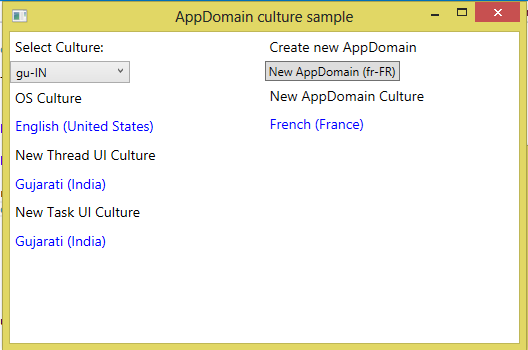
Figure 1.0 – WPF 4.5 Sample application demonstrating globalization in app domain
As shown in Figure 1.0, the app has dropdown and it contains four different culture
code en-US, es-ES, gu-IN, and ru-RU. When you select any of the culture, following
code executes that creates new culture and also new thread and task.
private void CultureList_SelectionChanged(object sender, SelectionChangedEventArgs e)
{
CultureInfo culture = new CultureInfo(this.CultureList.SelectedItem.ToString());
CultureInfo.DefaultThreadCurrentCulture = culture;
CultureInfo.DefaultThreadCurrentUICulture = culture;
Thread newThread = new Thread(new ThreadStart(NewThread));
newThread.Start();
CreateNewTask();
}
Listing 1.1 – Setting default culture and UI Culture for current app domain
The code for NewThread method and CreateNewTask is as simple as following. It just
sets Text to current UI culture’s DisplayName for newly created task/thread.
private void NewThread()
{
Dispatcher.Invoke(() => txtNewThreadUICulture.Text = Thread.CurrentThread.CurrentUICulture.DisplayName);
}
private void CreateNewTask()
{
Task.Factory.StartNew(() =>
{
Dispatcher.Invoke(() => txtNewTaskUICulture.Text = Thread.CurrentThread.CurrentUICulture.DisplayName);
});
}
Listing 1.2 – Code for showing current UI culture
When you run the sample app and select any culture from drop down, the output would
be one that is shown in Figure 1.0. Note that by just setting default culture,
we need not to set it for newly created thread or task. As I said that default
culture is set at app domain level, let’s create another app domain with fr-FR
culture. As shown in Figure 1.0, when you click on the New AppDomain button,
it would execute following piece of code.
private void AppDomainButton_Click(object sender, RoutedEventArgs e)
{
AppDomainSetup newDomain = new AppDomainSetup();
newDomain.AppDomainInitializer = (cultures) =>
{
CultureInfo.DefaultThreadCurrentCulture = CultureInfo.CreateSpecificCulture(cultures[0]);
CultureInfo.DefaultThreadCurrentUICulture = CultureInfo.CreateSpecificCulture(cultures[0]);
};
newDomain.AppDomainInitializerArguments = new string[] { "fr-FR" };
var appDomain = AppDomain.CreateDomain("NewDomain", null, newDomain);
var appDomainCulture = appDomain.CreateInstanceAndUnwrap(typeof(AppDomainCultureInfo).Assembly.FullName,
typeof(AppDomainCultureInfo).FullName) as AppDomainCultureInfo;
Dispatcher.Invoke(() => txtNewAppDomainCulture.Text = appDomainCulture.Culture.DisplayName);
}
}
public class AppDomainCultureInfo : MarshalByRefObject
{
public CultureInfo Culture
{
get
{
return CultureInfo.CurrentUICulture;
}
}
}
Listing 1.3 – Code for creating new app domain
As per Listing 1.3, the code creates new app domain using AppDomainSetup class. I
have created AppDomainCultureInfo class to get CurrentUICulture of newly created
app domain. As you can see, by just setting these two static properties DefaultThreadCurrentCulture
and DefaultThreadCurrentUICulture CultureInfo, you can manage with localized
cultures in multi-threaded and multiple AppDomain applications neat way.
Feature 2: Access to a collection outside of the UI thread
Any running WPF applications has two important threads. One thread does rendering
and one for managing the user interface called UI thread. The thread which we
developer deal mostly with is UI thread. Most of the WPF objects is hooked up
with this UI thread. So if you do some long running task or time consuming process,
UI becomes non-responsive. To overcome this, asynchronous programming model is
used along with Dispatcher/background worker to do long running task in other
thread and access UI element by using Dispatcher.
Now there is more natural solution to this by asynchronously manipulating collection
bound to UI using the BindingOperations.EnableCollectionSynchronization() method
that combines a collection with a lock and allow manipulation of it without any
additional code. Let’s wire up very simple application to demonstrate this concept.
<StackPanel>
<ListBox HorizontalAlignment="Left" Height="124" VerticalAlignment="Top" Width="225" ItemsSource="{Binding MessageCollection}"/>
<Button Content="Add from Non-UI thread" HorizontalAlignment="Left" Click="Button_Click" />
</StackPanel>
Listing 2.0 – XAML code snippet for UI
As per Listing 2.0, XAML markup for UI is very simple as having a ListBox control
bound to MessageCollection which is of type ObservableCollection and a Button
having Click event to add item to this collection from the code behind.
public partial class MainWindow : Window
{
public ObservableCollection<string> MessageCollection { get; set; }
private static object messageLockObject = new object();
public MainWindow()
{
InitializeComponent();
this.MessageCollection = new ObservableCollection<string>();
BindingOperations.EnableCollectionSynchronization(MessageCollection, messageLockObject);
this.DataContext = this;
}
private void Button_Click(object sender, RoutedEventArgs e)
{
Task.Run(() => MessageCollection.Add("Message from non-UI thread"));
}
}
Listing 2.1 – Sample code for accessing collection from non-UI thread
As shown in Listing 2.1, the line BindingOperations.EnableCollectionSynchronization(MessageCollection,
messageLockObject); locks the collection object with the static object messageLockObject
that we created. And From button click event, we are adding string item to the
collection from other thread. When you run the sample, you will see that it works
fine. Now just comment the line BindingOperations.EnableCollectionSynchronization(MessageCollection,
messageLockObject); and you will see that NotSupportedException is thrown.
Source Code
Click here to download the source code of this article.