Xamarin got few good components such as Scandit and ZXing for this purpose. These components enables scanning of barcode with few lines of
code. For this article, we will be using Zxing Barcode scanner library. The
code that we will write using this library is going to be pretty much the same
for all three mobile platform except that for iOS 7 and higher, we have option
to use AVCaptureSession barcode scanning which is newly introduced in iOS 7.
ZXing provides scanner as a View. It means that for iOS it is UIView, Fragment for
Android and Control for Windows Phone. The default ZXing scanning interface is
consist of just one horizontal red line in the scanning view with semi-transparent
borders on the top and bottom of the non-scanning area. But you can customize
the overlay by creating your own View for each platform. Also all barcode formats
are monitored while scanning and you can opt in for the format to check by using
ZxingScanningOptions to StartScanning method that we will code later.
Perquisites
• Visual Studio 2012
• Xamarin download
http://xamarin.com/download
Setup trial version
http://docs.xamarin.com/guides/cross-platform/getting_started/beginning_a_xamarin_trial/
• If you have Mac running Mountain Lion or later, follow this link to setup Xamarin
build host
http://docs.xamarin.com/guides/ios/getting_started/installation/windows/#Installation
• ZXing.Net.Mobile library
Install using following command from package manager:
PM> Install-Package ZXing.Net.Mobile
Windows Phone 8 app
Let’s code for Windows Phone first and check the running app on my Lumia 720!
Create Windows Phone application project and replace LayoutRoot Grid with the code
shown in Listing 1.0 below. Also add reference to ZXing.Net.Mobile nuGet package
as mentioned in perquisites.
<!--LayoutRoot is the root grid where all page content is placed-->
<Grid x:Name="LayoutRoot" Background="Transparent">
<Grid.RowDefinitions>
<RowDefinition Height="Auto"/>
<RowDefinition Height="*"/>
</Grid.RowDefinitions>
<!--TitlePanel contains the name of the application and page title-->
<StackPanel x:Name="TitlePanel" Grid.Row="0" Margin="12,17,0,28">
<TextBlock Text="WP8" Style="{StaticResource PhoneTextNormalStyle}" Margin="12,0"/>
<TextBlock Text="Barcode scan" Margin="9,-7,0,0" Style="{StaticResource PhoneTextTitle1Style}"/>
</StackPanel>
<!--ContentPanel - place additional content here-->
<Grid x:Name="ContentPanel" Grid.Row="1" Margin="12,0,12,0">
<Button Height="256" Width="256" Click="Button_Click">Do Scan</Button>
</Grid>
</Grid>
Listing 1.0 View for barcode scanner app for Windows Phone
As simple as that, we have one button and on click of it, it will invoke scanner.
using Microsoft.Phone.Controls;
using System;
using System.Windows;
using System.Windows.Navigation;
using ZXing.Mobile;
namespace QR.WP8
{
public partial class MainPage : PhoneApplicationPage
{
MobileBarcodeScanner scanner;
// Constructor
public MainPage()
{
InitializeComponent();
scanner = new MobileBarcodeScanner(this.Dispatcher);
}
private void Button_Click(object sender, RoutedEventArgs e)
{
scanner.UseCustomOverlay = false;
scanner.TopText = "Scanning for barcode";
scanner.Scan().ContinueWith(t =>
{
if (t.Result != null)
DisplayResult(t.Result);
});
}
void DisplayResult(ZXing.Result result)
{
string message = "";
if (result != null && !string.IsNullOrEmpty(result.Text))
message = "Barcode: " + result.Text;
else
message = "Could not scan.";
this.Dispatcher.BeginInvoke(() =>
{
MessageBox.Show(message);
NavigationService.Navigate(new Uri("/MainPage.xaml", UriKind.Relative));
});
}
}
}
Listing 1.1 Code to invoke ZXing barcode scanner engine and displaying result
As per Listing 1.1, we have created MobileBarcodeScanner object. On button’s click,
we call Scan method to scan barcode and then display the result in message box.
Let’s hit F5 and see this small app in action.
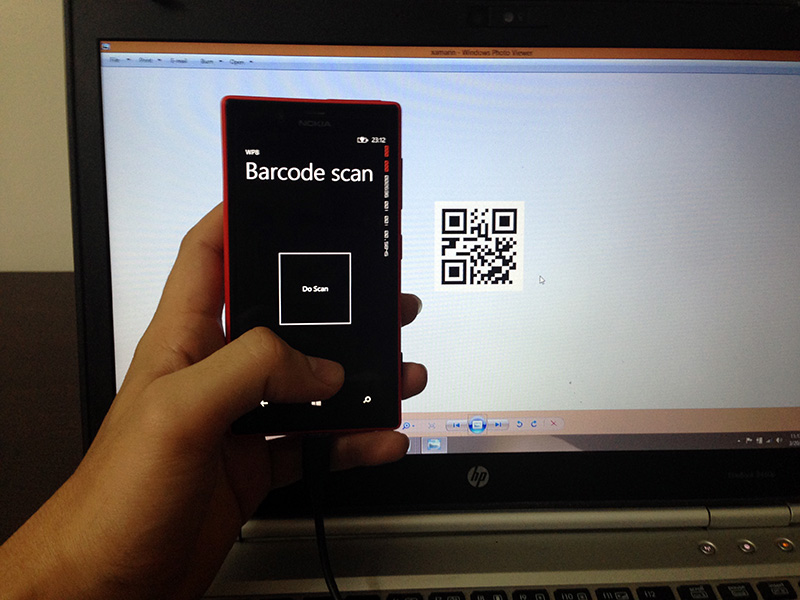
Figure 1.0 Windows Phone bar code scanner

Figure 1.1 Read QR code value
iOS app
For iOS app, the code is same except that in constructor I check whether it is iOS
7 or higher so we can use AVCapture engine.
UIButton buttonAVCaptureScan;
public MyViewController(): base()
{
Version sv = new Version (0, 0, 0);
Version.TryParse (UIDevice.CurrentDevice.SystemVersion, out sv);
iOS7OrHigher = sv.Major >= 7;
}
if (iOS7OrHigher)
{
buttonAVCaptureScan = new UIButton (UIButtonType.RoundedRect);
buttonAVCaptureScan.Frame = new RectangleF (20, 140, 280, 40);
buttonAVCaptureScan.SetTitle ("AVCapture scan", UIControlState.Normal);
buttonAVCaptureScan.TouchUpInside += async (sender, e) =>
{
scanner.UseCustomOverlay = false;
scanner.TopText = "Scanning for barcode";
var result = await scanner.Scan(true);
DisplayResult(result);
};
}
if (iOS7OrHigher)
this.View.AddSubview (buttonAVCaptureScan);
Listing 1.2 iOS scanner app code
Listing 1.2 shows partial code snippet for MyViewController. Note that I am creating
all controls in controller file and adding it to view using View.AddSubView method.
You can grab the full source code at the end of this article to try it out.
Android app
For android, we will have following markup for the UI part in Main.axml file.
<?xml version="1.0" encoding="utf-8"?>
<LinearLayout xmlns:android="http://schemas.android.com/apk/res/android"
android:orientation="vertical"
android:layout_width="fill_parent"
android:layout_height="fill_parent"
>
<Button
android:text="Do scan"
android:layout_width="fill_parent"
android:layout_height="wrap_content"
android:id="@+id/buttonDoScan"
android:layout_weight="0.5" />
</LinearLayout>
Listing 1.3 Android app UI code
The default created Activity1.cs has following code which is pretty similar to Windows
Phone.
[Activity(Label = "QR.Android", MainLauncher = true, Icon = "@drawable/icon")]
public class Activity1 : Activity
{
Button buttonDoScan;
MobileBarcodeScanner scanner;
protected override void OnCreate(Bundle bundle)
{
base.OnCreate(bundle);
SetContentView(Resource.Layout.Main);
scanner = new MobileBarcodeScanner(this);
buttonDoScan = this.FindViewById<Button>(Resource.Id.buttonDoScan);
buttonDoScan.Click += async delegate
{
scanner.UseCustomOverlay = false;
scanner.TopText = "Scanning for barcode";
var result = await scanner.Scan();
DisplayResult(result);
};
}
void DisplayResult(ZXing.Result result)
{
string message = "";
if (result != null && !string.IsNullOrEmpty(result.Text))
message = "Barcode: " + result.Text;
else
message = "Could not scan.";
this.RunOnUiThread(() => Toast.MakeText(this, message, ToastLength.Short).Show());
}
}
Listing 1.4 Android scanner app code
Source code
You can download full source code here.
Some QR code to scan!