In order to receive the messages from GCM, the Google Service Framework must be installed
on a device. This framework will be installed when the Google Pay store is installed
on a device. When a message received, Google Service Framework DE serializes
the message to Intent and broadcast this intent to application that has registered
for them.
Here is the work flow in order to setup the GCM
1) Create a Google API Project.
2) Create an Android Application.
3) Create a Server application.
1) Create a Google API Project:
To create a Google API project, open the Google API console by clicking on the
below link.
https://console.developers.google.com/
Click the Create Project, Enter the Project Name and click create. Once the project
has been created, a page appears to display the Project ID and Project Number.
This project number later you will be used as Sender ID in Android client app,
as well in server app.
By default, GCM for Android service will be disabled; you can enable it by clicking
on the API & auth menu item.
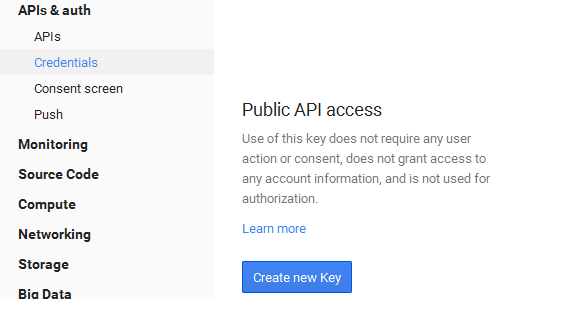
 Apart from Sender ID, server app requires GoogleAppID which is nothing but a
browser key you need to generate from this API console. Select the Credentials
under API & auth menu item, click the Create New key for public access.
Apart from Sender ID, server app requires GoogleAppID which is nothing but a
browser key you need to generate from this API console. Select the Credentials
under API & auth menu item, click the Create New key for public access.
2) Create An application:
Create a client xamarin Android application in visual studio, right click on the
Components folder add the Google Messaging Client which is used to set up Push
Notifications quickly and easily.
For registration, application need to send the sender id to the GCM server the
following code will help you to do that.
GcmClient.CheckDevice(this);
GcmClient.CheckManifest(this);
GcmClient.Register(this, GcmBroadcastReceiver.SENDER_IDS);
The GcmClient.CheckDevice() and GcmClient.CheckManifest() will help to see whether
GCM is supported and manifest information is correct.
GcmClient.Register will try to register the device in the GCM server, with sender
id.
Now add BroadCastReceiver and service in the application to receive the registration
id or device id and the notifications.
Here is the implementation of BroadcastReceiver
[BroadcastReceiver(Permission = Constants.PERMISSION_GCM_INTENTS)]
[IntentFilter(new string[] { Constants.INTENT_FROM_GCM_MESSAGE },
Categories = new string[] { "@PACKAGE_NAME@" })]
[IntentFilter(new string[] { Constants.INTENT_FROM_GCM_REGISTRATION_CALLBACK },
Categories = new string[] { "@PACKAGE_NAME@" })]
[IntentFilter(new string[] { Constants.INTENT_FROM_GCM_LIBRARY_RETRY },
Categories = new string[] { "@PACKAGE_NAME@" })]
public class GcmBroadcastReceiver : GcmBroadcastReceiverBase<GcmService>
{
//IMPORTANT: Change this to your own Sender ID!
//The SENDER_ID is your Google API Console App Project Number
public static string[] SENDER_IDS = new string[] { "138645946506" };
}
}
And here is the implementation of Service.
[Service]
public class GcmService : GcmServiceBase
{
public GcmService() : base(GcmBroadcastReceiver.SENDER_IDS) { }
protected override void OnRegistered (Context context, string registrationId)
{
Console.WriteLine ("Device Id:" + registrationId);
}
protected override void OnMessage (Context context, Intent intent)
{
if (intent != null && intent.Extras != null) {
var message = intent.Extras.GetString ("message");
createNotification ("Push Sample", message);
}
}
protected override void OnUnRegistered (Context context, string registrationId)
{
//Receive notice that the app no longer wants notifications
}
protected override void OnError (Context context, string errorId)
{
//Some more serious error happened
}
private void createNotification(string title, string desc)
{
var notificationManager = GetSystemService(Context.NotificationService)
as NotificationManager;
var uiIntent = new Intent(this, typeof(MainActivity));
var notification = new Notification(Resource.Drawable.Icon, title);
notification.Flags = NotificationFlags.AutoCancel;
notification.Defaults = NotificationDefaults.Sound;
notification.SetLatestEventInfo(this, title, desc,
PendingIntent.GetActivity(this, 0, uiIntent, 0));
notificationManager.Notify(1, notification);
}
}
Once the device registration is successful, you will get the registration id in the
OnRegistered event. And whenever a notification received the OnMessage method
will be invoked. The intent parameter in the OnMessage() will contains all the
notification details.
3) Create a server application:
For sending Push Notifications, create an app. Here I am creating an Asp.Net web
application and the implementation as below.
public string SendNotification(string deviceId, string message)
{
var GoogleAppID = "AIzaSyDl9x0U8IqkIXFS88pIK51kcq2Zl9jnwww";
var SENDER_ID = "138645946506";
var value = message;
var webRequest = WebRequest.Create("https://android.googleapis.com/gcm/send");
webRequest.Method = "POST";
webRequest.ContentType = " application/x-www-form-urlencoded;charset=UTF-8";
webRequest.Headers.Add(string.Format("Authorization: key={0}", GoogleAppID));
webRequest.Headers.Add(string.Format("Sender: id={0}", SENDER_ID));
webRequest.UseDefaultCredentials = true;
webRequest.PreAuthenticate = true;
webRequest.Credentials = new NetworkCredential("Asterminds.mobileapp@gmail.com", "pradeep@siva"); ;
var postData = "collapse_key=score_update&time_to_live=108&delay_while_idle=1&data.message="
+ value + "®istration_id=" + deviceId + "";
Byte[] bytes = Encoding.UTF8.GetBytes(postData);
webRequest.ContentLength = bytes.Length;
var dataStream = webRequest.GetRequestStream();
dataStream.Write(bytes, 0, bytes.Length);
dataStream.Close();
var webResponse = webRequest.GetResponse();
dataStream = webResponse.GetResponseStream();
var streamReader = new StreamReader(dataStream);
var responseFromServer = streamReader.ReadToEnd();
streamReader.Close();
dataStream.Close();
webResponse.Close();
return responseFromServer;
}
Above function is expecting the message you would like to send and the deviceId which
is nothing but a device Id which will be generated while registering the Android
app with GCM.
If you want to test this app in emulator, first you should change the target of the
emulator to Google API, and then set up a goggle account by selecting the Accounts
& Sync option in the settings.
If you have any issues with emulator, use Android device for testing the app.
Download the working sample from below link.
Android App:
https://www.nullskull.com/FileUpload/-407123783_PushNotifications.zip
Server app (asp.net)
https://www.nullskull.com/FileUpload/-407123783_SendTile.zip