Bing Maps in Universal app (Windows Phone/Store 8.1)
Learn how we can use the Bing Maps in Universal (Windows Store/Phone 8.1) WINRT apps.
By Creating a Universal app, you will get two projects, project for windows store and project for Windows Phone by sharing the shared project.
Note: Make sure you install VS 2013 with Update 2 for creating a Universal app project.
Below is the Base URI used to launch the Bing Map by passing the required parameters
in query string format.
private static string baseUri = "bingmaps:?";
Using Centre & Zoom:
This section describes to pass Latitude, Longitude and Zoom parameters as query string
to Bing Map.
a) Create simple UI to input Latitude, Longitude and Zoom values and Button to launch
the Map.
<StackPanel Width="300">
<TextBlock Text="Using Center & Zoom:" FontWeight="Bold"/>
<StackPanel Orientation="Horizontal" Margin="10">
<TextBlock Text="Latitude:"/>
<TextBox Name="LatitudeTbx" InputScope="Number" Width="150" Text="51.5"/>
</StackPanel>
<StackPanel Orientation="Horizontal" Margin="10">
<TextBlock Text="Longitude:"/>
<TextBox Name="LongitudeTbx" InputScope="Number" Width="150" Text="-0.1"/>
</StackPanel>
<StackPanel Orientation="Horizontal" Margin="10">
<TextBlock Text="Zoom:"/>
<TextBox Name="ZoomTbx" InputScope="Number" Text="15"/>
</StackPanel>
<Button Content="Launch Map"
HorizontalAlignment="Center"
Tapped="LaunchCenterZoom_Tapped"/>
</StackPanel>
b) Input the values and click on Button, format the query string by taking the values
from UI in button click event as below.
string uri = string.Format("{0}cp={1:N5}~{2:N5}&lvl={3}", baseUri, latitude, longitude, zoom);
c) pass this uri to Launcher which will launch the Bing Map as per the given coordinates
and Zoom factor
await Windows.System.Launcher.LaunchUriAsync(new Uri(uri))
Using What & Where:
If you want to search by location or address, then you just need to specify the search
query either with location or address.
Example
Location: New York
Address: School in New York
If you search with address like School in New York, Map will show the list of schools
in New York with full address.
a) Create an UI to enter location and Button to launch the Bing Map
<StackPanel Width="300">
<TextBlock Text="Using What & Where:" FontWeight="Bold"/>
<StackPanel Orientation="Horizontal" Margin="10">
<TextBlock Text="Query:"/>
<TextBox Name="QueryTbx" Width="250" Text="Pizza in New York"/>
</StackPanel>
<Button Content="Launch Map"
HorizontalAlignment="Center"
Tapped="LaunchWhatWhere_Tapped"/>
</StackPanel>
b) In button click event, Pass where and what location details as query parameter
and format the uri as below.
string uri = baseUri + "&q=" + Uri.EscapeDataString(query);
await Windows.System.Launcher.LaunchUriAsync(new Uri(uri))
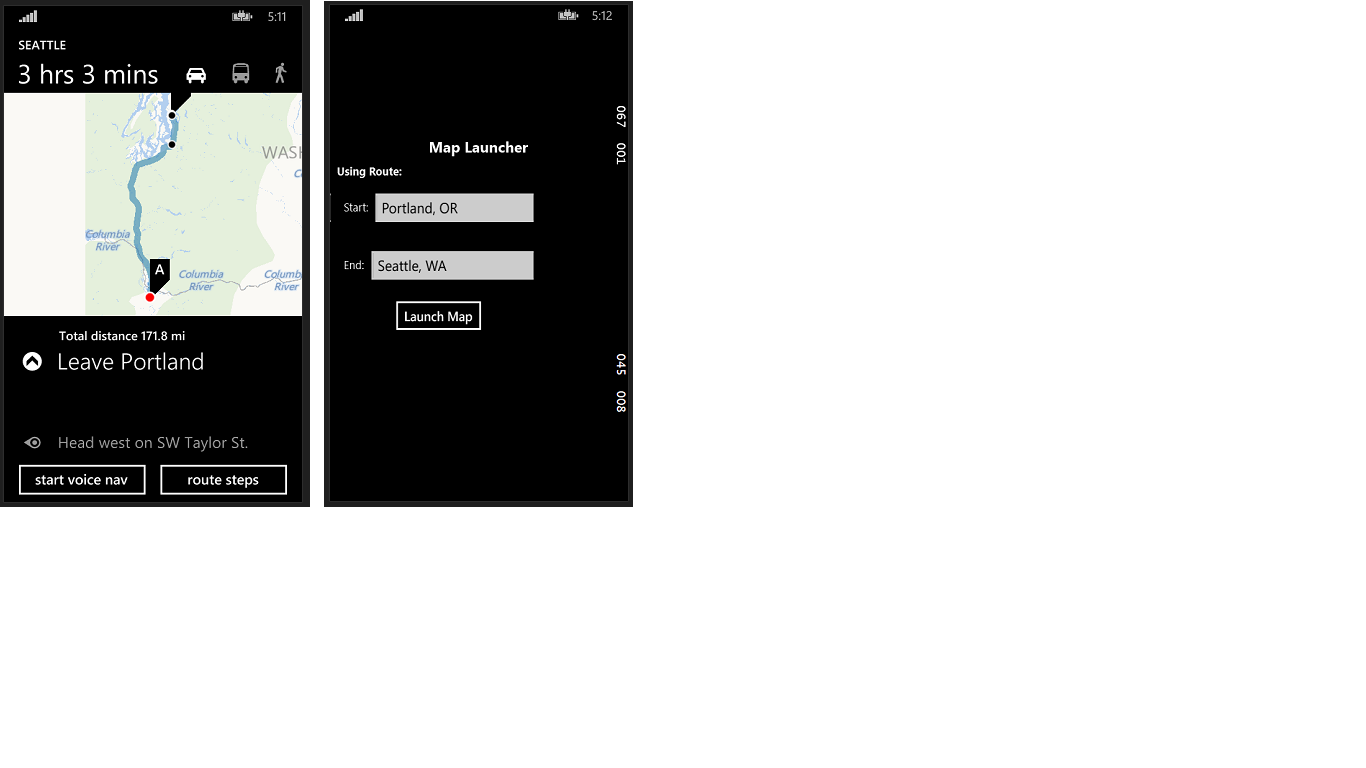
Using Route:
If you want to search with Start and end point, you just need to specify the start
location and end location. The start and end location will be pointed in the
Map with directions.
a) Create an UI to enter start and end location with button to launch the Map.
<StackPanel Width="300">
<TextBlock Text="Using Route:" FontWeight="Bold"/>
<StackPanel Orientation="Horizontal" Margin="10">
<TextBlock Text="Start:"/>
<TextBox Name="StartTbx" Width="250" Text="Portland, OR"/>
</StackPanel>
<StackPanel Orientation="Horizontal" Margin="10">
<TextBlock Text="End:"/>
<TextBox Name="EndTbx" Width="250" Text="Seattle, WA"/>
</StackPanel>
<Button Content="Launch Map"
HorizontalAlignment="Center"
Tapped="LaunchRoute_Tapped"/>
</StackPanel>
b) Format URI for as below.
string uri = string.Format("{0}rtp=adr.{1}~adr.{2}", baseUri, Uri.EscapeDataString(start), Uri.EscapeDataString(end));
await Windows.System.Launcher.LaunchUriAsync(new Uri(uri))
If you are developing an app in Windows Phone 8.1 silverlight, please follow below
link.
https://msdn.microsoft.com/en-us/library/windows/apps/jj207045(v=vs.105).aspx
Please download the working sample from below link.
https://www.nullskull.com/FileUpload/-407123783_LaunchingMapsinaUniversalApp.zip
By Siva Jagan Dhulipalla Popularity (2339 Views)