Note: Make sure you install VS 2013 with Update 2 for creating a Universal app project.
If you want to implement Windows Live Authentication in Universal apps, you should
register your app in windows app store, for that you require a windows developer
account. If you don’t have an account, please refer below link for licensing
information.
https://msdn.microsoft.com/en-us/library/windows/apps/jj863494.aspx
1) Register app in windows App store:
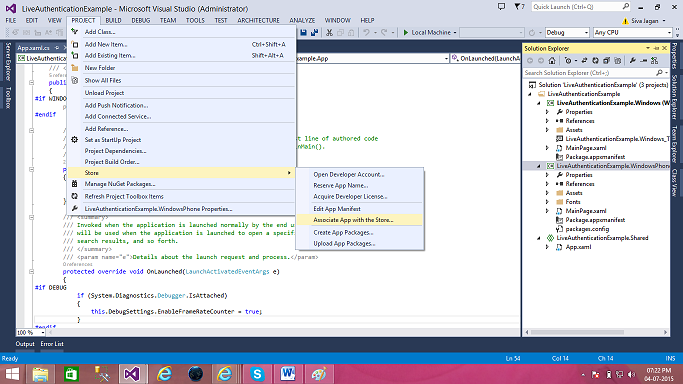
a) Select Windows Phone 8.1 project, open project from VS menu, select store and
then clicks on Associate App with the store.
b) Sign in with developer account, enter a Reserve a new app name, click on Reserve
and then Associate.
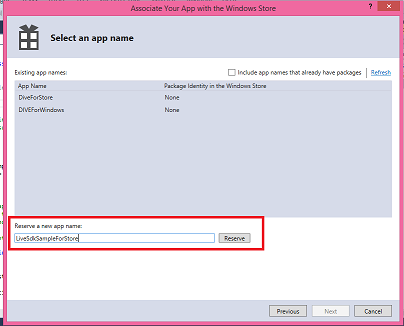
c) Once you associate, Package.StoreAssociation.xml file will be added to the project.
Now we are successfully associated phone app to store. Repeat same steps for Windows
Store project as well.
2) LIVE Authentication:
a) Add Nuget package live sdk to project.
b) Use LiveAuthClient to perform basic authentication mechanism. Create an object
for LiveAuthClient.
this.authClient = new LiveAuthClient();
c) Define login scopes; in this case I am defining basic scopes for Authentication
and skydrive scopes for OneDrive operations.
string[] LoginScopes = { "wl.basic", "wl.emails", "wl.offline_access", "wl.signin", "wl.skydrive", "wl.skydrive_update" };
d) Pass defined login scopes to the LoginAsync function of LiveAuthClient which will
validate user credentials with respect to the login scopes.
LiveLoginResult liveLoginResult;
this.liveLoginResult = await this.authClient.LoginAsync(LoginScopes);
f) Use InitializeAsync function for identifying whether the user is Authenticated,
if not then only call the LogInAsync function.
LiveLoginResult result = await this.authClient.InitializeAsync(LoginScopes);
if (result.Status != LiveConnectSessionStatus.Connected)
{}
Complete code block as follows.
public async Task<bool> AuthenticateAsync()
{
try
{
string[] LoginScopes = { "wl.basic", "wl.emails", "wl.offline_access", "wl.signin", "wl.skydrive", "wl.skydrive_update" };
this.liveLoginResult = await this.authClient.LoginAsync(LoginScopes);
if (this.liveLoginResult.Status == LiveConnectSessionStatus.Connected)
{
this.AccessToken = this.liveLoginResult.Session.AccessToken;
return true;
}
}
catch (LiveAuthException exc)
{
return false;
}
return false;
}
public async Task<bool> IsUserAuthenticatedAsync()
{
string[] LoginScopes = { "wl.basic", "wl.emails", "wl.offline_access", "wl.signin", "wl.skydrive", "wl.skydrive_update" };
LiveLoginResult result = await this.authClient.InitializeAsync(LoginScopes);
if (result.Status != LiveConnectSessionStatus.Connected)
{
return false;
}
this.AccessToken = result.Session.AccessToken;
return true;
}
Sequence of function calls as follows.
if (!await this.IsUserAuthenticatedAsync())
{
if (await this.AuthenticateAsync())
} }
3) Create a folder in OneDrive:
a) Initialize LiveConnectClient by passing the LiveAuthClient session
var connect = new LiveConnectClient(this.authClient.Session);
b) Use below code for creating a folder in one drive.
LiveOperationResult lor = await connect.PostAsync("me/skydrive", new Dictionary<string, object>() { { "name", this.FolderName } });
c) Complete function as follows.
if (this.authClient.Session == null)
{
if (!await IsUserAuthenticatedAsync())
{
return;
}
}
var connect = new LiveConnectClient(this.authClient.Session);
LiveOperationResult lor = await connect.PostAsync("me/skydrive", new Dictionary<string, object>() { { "name", this.FolderName } });
dynamic result = lor.Result;
string name = result.name;
string id = result.id;
this.FolderId = id;
4) Upload file to OneDrive:
There is a FolderId for each folder in OneDrive. This FolderId is required while
uploading a file to specific folder. In this case, you have a FolderId from CreateFolder
function.
if (this.authClient.Session == null)
{
if (!await IsUserAuthenticatedAsync())
{
return;
}
}
await this.CreateFolder();
if (string.IsNullOrEmpty(this.FolderId))
{
return;
}
var connect = new LiveConnectClient(this.authClient.Session);
await connect.BackgroundUploadAsync(this.FolderId, file.Name, file, OverwriteOption.Overwrite);
Below piece of code used to get the folder id from OneDrive.
var connect = new LiveConnectClient(this.authClient.Session);
LiveOperationResult lor = await connect.GetAsync("me/skydrive/files");
dynamic result = lor.Result;
this.FolderId = string.Empty;
foreach (dynamic file in result.data)
{
if (file.type == "folder" && file.name == this.FolderName)
{
this.FolderId = file.id;
}
}
5) Open file from OneDrive:
When you want to edit the OneDrive document, we can use this feature to open the
file in browser, where you can edit and Save. The file will be saved directly
to OneDrive with latest changes.
a) Get all files from OneDrive
var fileDetails = await connect.GetAsync("me/skydrive/files");
the result will have list of files information with link for opening the file.
b) Pass this link to Windows Launcher to launch the file in browser. If you are launching
first time, you need to provide your LIVE credentials, then file will be opened
in edit mode where you can make changes and save the document back to onedrive.
//getting all the files
var connect = new LiveConnectClient(this.authClient.Session);
var fileDetails = await connect.GetAsync("me/skydrive/files");
var fileInfo = JsonConvert.DeserializeObject<File>(fileDetails.RawResult);
// to open on browser
if (fileInfo != null)
{
//open first file in browser
var link = fileInfo.Files.FirstOrDefault().Link;
if (link != null)
{
// to open on browser
await Windows.System.Launcher.LaunchUriAsync(
new Uri(link + "access_token=" + authClient.Session.AccessToken));
}
}
Download the working sample from below location
https://www.nullskull.com/FileUpload/-407123783_LiveAuthenticationExample.zip