Create a universal app project; by creating a Universal app project, you will get
two projects, project for windows store and project for Windows Phone by sharing
the shared project.
Note: Make sure you install VS 2013 with Update 2 for creating a Universal app project.
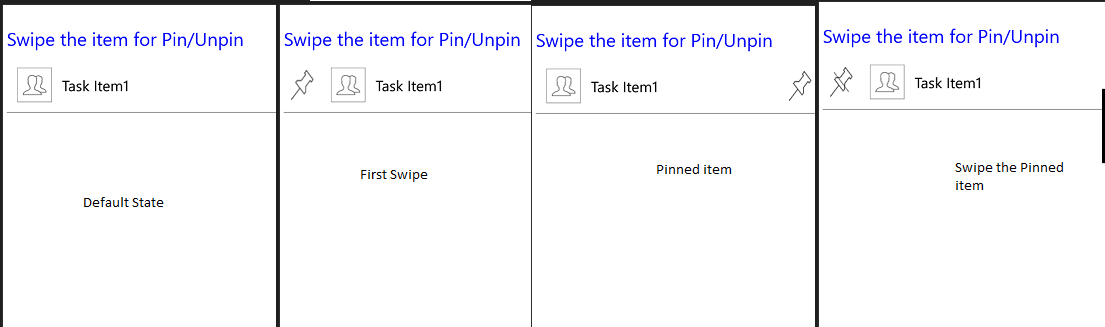
Add ListView control and make sure to set the property IsSwipeEnabled=true.
<ListView Margin="5" Name="lstViewMyChats" ItemsSource="{Binding Tasks}"
IsSwipeEnabled="True" SelectionMode="Single"></ListView>
Define the data template for ListView as below.
<DataTemplate>
<StackPanel>
<StackPanel Orientation="Horizontal">
<Button MinHeight="40"
Click="ButtonPin_Click"
MinWidth="30"
BorderThickness="0"
Background="Transparent" Visibility="{Binding PinButtonVisibility,Converter={StaticResource BoolToVisibility}}"
>
<Button.Content>
<Image Stretch="Fill"
x:Name="PinImage"
Source="../Assets/pin.png"
MaxHeight="40"
MinHeight="40"
MaxWidth="30"
MinWidth="30" >
</Image>
</Button.Content>
</Button>
<Button MinHeight="40"
MinWidth="30"
BorderThickness="0"
Click="ButtonUnPin_Click"
Background="Transparent" Visibility="{Binding UnPinButtonVisibility,Converter={StaticResource BoolToVisibility}}">
<Button.Content>
<Image Stretch="Fill"
x:Name="UnPinImage"
Source="../Assets/unpin.png"
MaxHeight="40"
MinHeight="40"
MaxWidth="30"
MinWidth="30">
</Image>
</Button.Content>
</Button>
<Grid Height="70"
Margin="0,0,10,0" Width="370"
ManipulationStarted="lstViewMyChats_ManipulationStarted"
ManipulationDelta="lstViewMyChats_ManipulationDelta"
ManipulationMode="TranslateX">
<Grid.ColumnDefinitions>
<ColumnDefinition Width="0.2*"></ColumnDefinition>
<ColumnDefinition Width="0.8*"></ColumnDefinition>
</Grid.ColumnDefinitions>
<Image Grid.Column="0" Stretch="Fill"
Source="../Assets/people_default.png" MaxHeight="50"
MaxWidth="40"
MinWidth="50"
MinHeight="50"></Image>
<TextBlock Grid.Column="1" Text="{Binding
TaskName}" VerticalAlignment="Center" Foreground="Black"
FontSize="20"></TextBlock>
<Image Stretch="Fill" Grid.Column="1"
Margin="50,0,0,0" HorizontalAlignment="Right"
x:Name="UnPinImages"
Source="../Assets/pin.png"
MaxHeight="40"
MinHeight="40"
MaxWidth="30"
MinWidth="30" Visibility="{Binding
IsPinnedItem,Converter={StaticResource BoolToVisibility}}"></Image>
</Grid>
</StackPanel>
<Line X1="0"
Y1="2"
X2="600"
Y2="2"
Stroke="Gray"
StrokeThickness="1"
Margin="0,0,0,5"
Grid.ColumnSpan="3"
VerticalAlignment="Bottom" />
</StackPanel>
</DataTemplate>
From the above template, created two buttons Pin and Unpin which will be showed up
when you swipe the list item from left to right. Either of the buttons will be
set to visible based on Pin or Unpin the respective list item.
Created a Grid layout in the template, set the property ManipulationMode=translateX
and added the events ManipulationStarted and ManipulationDelta which will get
fired while swiping the list item either from left to right or from right to
left.
From the ManipulationStarted event, we get initial position of the item as below.
Windows.Foundation.Point initialpoint;
private void lstViewMyChats_ManipulationStarted(object sender, ManipulationStartedRoutedEventArgs
e)
{
initialpoint = e.Position;
}
From the ManipulationDelta event, based on the position of list item we can identify
whether the item is being swiped from Left to right or from right to left.
If the item is being swiped from left to right, we just visible the Pin/Unpin button.
If the item is being swiped from right to left, we just invisible the Pin/Unpin button.
private void lstViewMyChats_ManipulationDelta(object sender, ManipulationDeltaRoutedEventArgs
e)
{
Grid listViewGrid = (Grid)sender;
var chatItem = ((((StackPanel)((StackPanel)(listViewGrid.Parent)).Parent))).DataContext
as Task;
if (initialpoint.X - e.Position.X > 30) // Swipe left
{
chatItem.PinButtonVisibility = false;
chatItem.UnPinButtonVisibility = false;
e.Complete();
}
else if (e.Position.X - initialpoint.X > 30) // Swipe right
{
chatItem.PinButtonVisibility = !chatItem.IsPinnedItem;
chatItem.UnPinButtonVisibility = chatItem.IsPinnedItem;
e.Complete();
}
}
When you swipe the item for the first time, it will show up the PIN button. Add
below code to PIN the item on click event.
private void ButtonPin_Click(object sender, RoutedEventArgs e)
{
if (lstViewMyChats.SelectedItem != null)
{
var chatItem = lstViewMyChats.SelectedItem as Task;
chatItem.PinButtonVisibility = false;
chatItem.UnPinButtonVisibility = false;
chatItem.IsPinnedItem = true;
}
}
When you swipe the Pinned item, it will show up the Unpin button and below code to
unpin.
private void ButtonUnPin_Click(object sender, RoutedEventArgs e)
{
if (lstViewMyChats.SelectedItem != null)
{
var chatItem = lstViewMyChats.SelectedItem as Task;
chatItem.PinButtonVisibility = false;
chatItem.UnPinButtonVisibility = false;
chatItem.IsPinnedItem = false;
}
}
Download the working sample from below location.
https://www.nullskull.com/FileUpload/-407123783_ListView.Zip