Recently my wife was developing a nice app in iOS for iPhone. It had one feature
requiring real time notification to users about the “like” or “comment” made
on the photo they shared. Pretty much like Facebook. At first site, I thought
they will be using Push notification or some sort duplex communication with connected
clients or simple poll mechanism to get those notifications. There I saw Firebase
in action for the first time. Firebase is a complete platform for building mobile
and web applications. It provides a real time JSON database for storing and sync
your data with applications. It is just not limited to this but also enables
authentication and hosting of your app and many more. You can visit their site
here:
https://www.firebase.com/
Firebase exposes a rest Api to talk to this real time json database. Thanks to .NET
wrapper of Firebase called FireSharp at https://github.com/ziyasal/FireSharp. We can now enable real time update to any web, desktop or mobile application using
this with very few lines of code! Magical enough, we will build two simple applications
in this article that will demonstrate this feature. Let’s start then.
Get free Firebase account
It’s great that they offer free account with enough features to get us started for
our application. You can register at https://www.firebase.com/signup/
Once you register, you will be presented with dashboard where you can create your
first app and choose firebase url for the same. You can give it whatever name
you like and if it is available with Firebase, it will create app with the specified
Firebase url. You also need to note down your app secret there which you can
access from Secretes menu. This app secret is what we need in our code with every
request we send to Firebase.
Sender app
I am calling it sender app in a sense that it will simply put one message into Firebase
database so that other application that we will build can receive it in real
time. The .net wrapper for Firebase is available as FireSharp on NuGet. Our sender
app will be simple WPF desktop app. Once you install NuGet for it, put following
piece of code in MainPage.xaml to construct simple user interface.
<Grid>
<Grid.RowDefinitions>
<RowDefinition Height="Auto"/>
<RowDefinition Height="Auto"/>
</Grid.RowDefinitions>
<TextBox x:Name="MessageText" Margin="10"/>
<Button Content="Send to Firebase" Width="100" Margin="10" Click="Button_Click" Grid.Row="1"/>
</Grid>
Listing 1.0 Sender app UI markup
Now open MainPage.xaml.cs and put following code:
namespace SenderApp
{
using FireSharp;
using FireSharp.Config;
using FireSharp.Response;
using System.Windows;
public partial class MainWindow : Window
{
private const string BasePath = "https://jaykamalesh.firebaseio.com/";
private const string FirebaseSecret = "7E902F0rku1WjBzI4i6c7FCLiXtdqU1XQaqJJE89";
private static FirebaseClient client;
public MainWindow()
{
InitializeComponent();
this.Loaded += MainWindow_Loaded;
}
private void MainWindow_Loaded(object sender, RoutedEventArgs e)
{
IFirebaseConfig config = new FirebaseConfig
{
AuthSecret = FirebaseSecret,
BasePath = BasePath
};
client = new FirebaseClient(config);
}
private async void Button_Click(object sender, RoutedEventArgs e)
{
PushResponse response = await client.PushAsync("jaykamalesh/", this.MessageText.Text);
this.MessageText.Text = string.Empty;
}
}
}
Listing 1.1 Firebase code for sending simple message as text
Listing 1.1 shows basic code to get started talking with Firebase. Note the use of
BasePath. This basepath is your Firebase app URL that you setup in your Firebase
account. The FirebaseSecret is your app secret that you obtained from Firebase
account under Secretes menu.
Once you do so, you can hit F5 and put some message into the text box and hit Send
to Firebase button. It will insert message into your Firebase. To verify it,
you can go to Firebase and can see the node inserted with your message by opening
database view from the Database menu.
Receiver app
For this app, you can choose any platform. It can be iOS, android, windows phone
or any .net web app or even console app. Since I am excited about Windows 10
Universal apps, I will create Windows 10 Universal app and will use Mobile emulator
to show real time update.
Let’s create Windows 10 Universal app project (or any project type of your liking)
and install FireSharp NuGet package. Once you are done with it, open MainPage.xaml
and put following markup to show simple ListBox.
<Grid Background="{ThemeResource ApplicationPageBackgroundThemeBrush}">
<ListBox x:Name="MessageList"/>
</Grid>
Listing 1.2 Receiver app UI
Now open MainPage.xaml.cs and put following lines of code:
namespace ReceiverApp
{
using FireSharp;
using FireSharp.Config;
using Windows.UI.Core;
using Windows.UI.Xaml;
using Windows.UI.Xaml.Controls;
public sealed partial class MainPage : Page
{
private const string BasePath = "https://jaykamalesh.firebaseio.com/";
private const string FirebaseSecret = "7E902F0rku1WjBzI4i6c7FCLiXtdqU1XQaqJJE89";
private static FirebaseClient client;
public MainPage()
{
this.InitializeComponent();
this.Loaded += MainPage_Loaded;
}
private async void MainPage_Loaded(object sender, RoutedEventArgs e)
{
IFirebaseConfig config = new FirebaseConfig
{
AuthSecret = FirebaseSecret,
BasePath = BasePath
};
client = new FirebaseClient(config);
await client.OnAsync ("jaykamalesh",
added: (s, args) =>
{
Dispatcher.RunAsync(CoreDispatcherPriority.Normal, () =>
{
MessageList.Items.Add(args.Data);
});
});
}
}
}
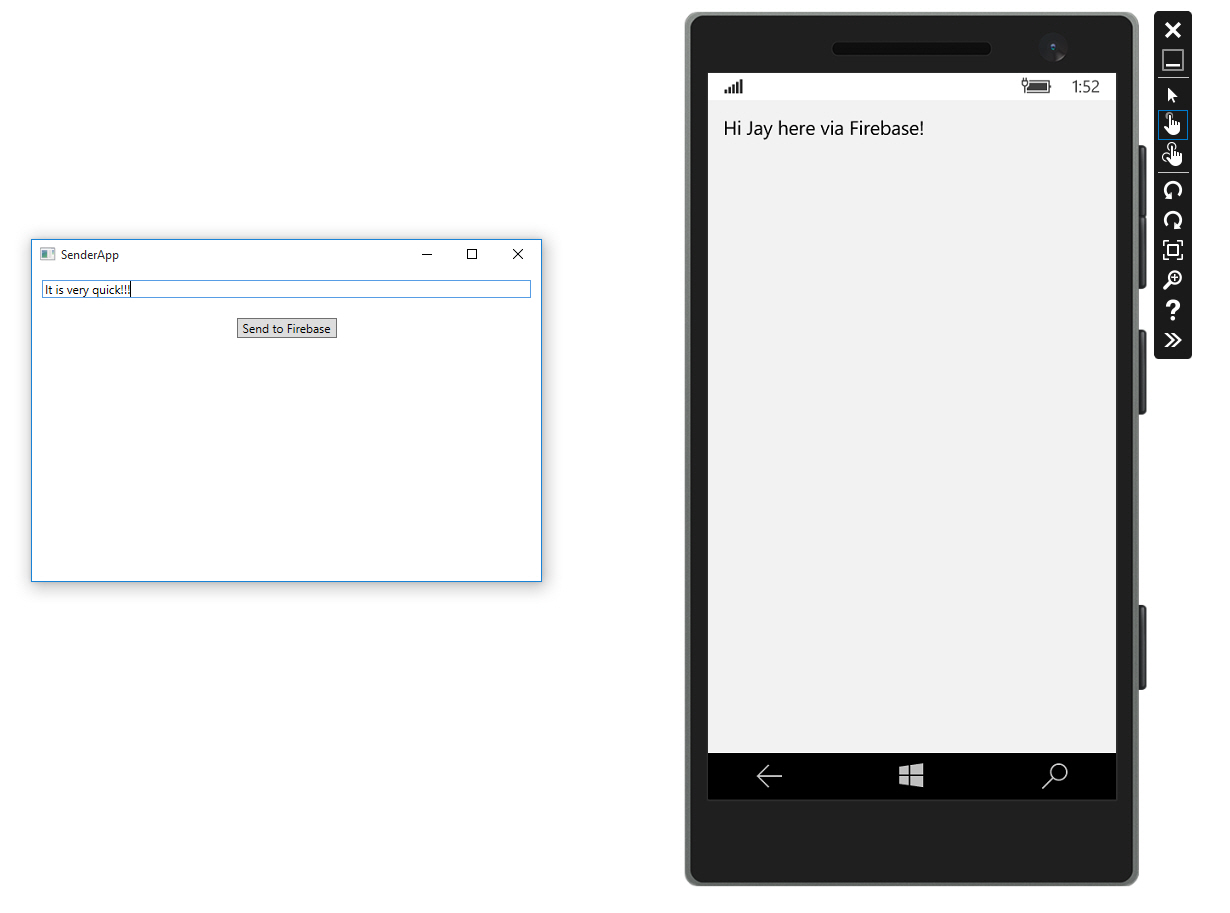
The code is identical to what you wrote in Sender app but it has code to subscribe
to event OnAsync. This event enables client to receive any update made to Firebase
in real time. What we do here is to simply show the update in listbox. It’s time
to see all this in action finally! Choose Mobile Emulator of your choice and
hit F5. Now also run Sender app and try to put some message and hit Send to Firebase
button. In second or two, you will message coming to your Windows Phone app in
real time!
Excited enough! Well, you can now visit this link to see possibilities to which you
can use Firebase for your app.
http://www.roberthorvick.com/2014/03/26/firebase-net-client-library/