In my previous article, Introduction to the Filter Tool, I used a Roster for my local Soccer club as an example of how to use the Filter
tool to quickly find data.
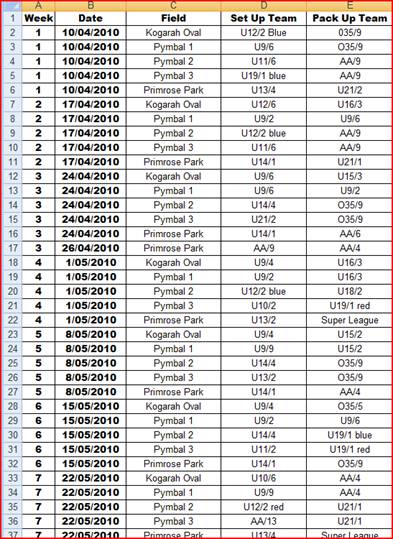
The roster I received from my soccer club noted when my team, “AA/4”, was required
to set up or pack up the soccer fields on behalf of the club. The following screenshot
shows a snippet of this roster up to week 7, which runs for a total of 14 weeks.
In the previous article I explained how to use the filter tool to quickly show when
my team, “AA/4”, was required to “set up” or when we were required to “pack up”
in two separate tables.
However, wouldn’t it be better to be able to see this in one single table?
To achieve this a nested IF statement can be used to create a “Flag” (http://en.wikipedia.org/wiki/Flag_%28computing%29 ) in a new column (Column F,
which I’ve labelled “AA/4”) so as the Filter Tool can be used to create 1 table.
The IF statement is used to see if my team is either the “Set up” OR the “Pack Up”
team on any given date. So In Column F, Row 2, I have put the following Formula;
=IF(D2="AA/4","Set Up", IF(E2="AA/4", "Pack UP",
"No"))
Following the Excel Syntax for an IF statement, which is;
=IF( “logic Test”, [Value_IF_True], [Value_If_false]
Let me break this formula down into its parts;
Logic Test 1
=IF(D2="AA/4","
This part says IF D2 (which we know is a cell under the “Set Up Team” Column) is
equal to my team “AA/4” then do one of two things. The Quotation marks around
“AA/4” let excel know I’m refereeing to text rather than a cell or formula and
the coma at signifies this section is over. This part is known as the Logic test.
[Value_If_True]
"Set Up",
This simply says if Logic Test 1 is true, i.e. my team is the setup team, then place
the works “Set Up” in the current cell with a coma at the end to signifcy more
to the next part
[Value_If_False] & Logic Test 2
IF(E2="AA/4",
This basically says if my team is not the ”Set Up Team” Now Check the “Pack Up Team”
(i.e. Cell E2) to see if equal to “AA/4”
[Value_If_True]
“Pack Up”,
This simply says if Logic Test 2 is true, i.e. my team is the “Pack Up Team”, then
place the works “Pack Up” in the current cell.
[Value_If_False]
“No”))
If both Logic Test 1 and Logic Test 2 are false then my team is neither the “set
up” or “pack up” team and to place the text “No” in the current Cell. The to
brackets at the end are used to close the two If statements we opened.
In our example , as both D2 and E2 are not “AA/4” we get the text “No” placed in
F2.

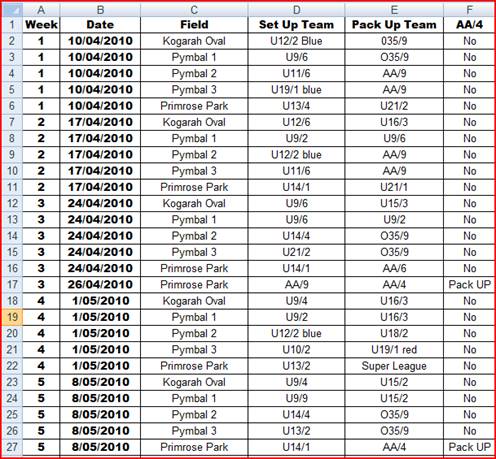
No we simply need to copy this formula down column “F” to the end of the data set
as shown below.
No by Higlighting the column Headings (Cells A1 through F1) and clicking on the filter
tool (which is contained in the “data” tab ribbon)  , or by clicking Ctrl +Shift + L. We can apply a filter to the data, and we will
get the drop down arrows as shown below;
, or by clicking Ctrl +Shift + L. We can apply a filter to the data, and we will
get the drop down arrows as shown below;
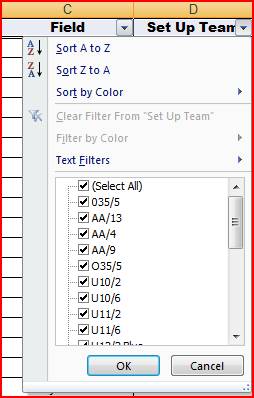
By Clicking on the drop down arrow on “Column E” and ticking on “Set Up” and “Pack
Up” as shown below;
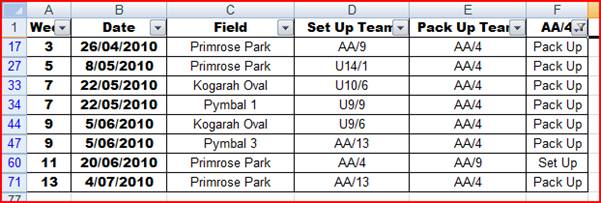
We will now have a list showing When the AA/4’s are responsible for Setting up OR
Packing up a ground. Removing all the dates where the AA/4’s are not responsible
as shown below;
There are many other ways to achieve the same result, however I find this the easiest
and quickest.
With some slight modification to the Header names to match Google’s Requirements (http://www.google.com/support/calendar/bin/answer.py?hl=en&answer=37118),
and by deleting (not just filtering) all the unwanted data (such as any row noted
as “No” in column F) I was then able to save this excel as a CSV file and imported
the filtered dates into my Google Calender! Quick and easy.
* Note, it my club’s policy that no team receive the “Set up” AND “Pack Up” Duties
on the one day. If this wasn’t the case the formula would need to be revised.