What is a Visual Web Part?
With SharePoint 2007 and Windows SharePoint Services 2007 or previous versions, to
develop custom web parts for SharePoint sites the developer has to write the
entire code from scratch. Also, the developer has to keep in mind all the design
issues, layouts and rendering of the web part. This was so cumbersome that developers
had to be careful while writing code. A single mistake while writing the design
code could mess up the whole layout.
But now using Visual Studio 2010, we can develop a custom web part for SharePoint
2010 site using the Visual designer. Visual Studio 2010 provides a new project
template for Visual Web Part. This project provides us the facility to develop
a custom web part by dragging and dropping the different web controls onto the designer
surface.
Now we will see how to develop a custom web part using this new feature provided
Visual Studio 2010. Following are the steps for creating a Visual Web Part project
using Visual Studio 2010.
1. Open Visual Studio 2010.
2. Click “New Project…” on the Start page.
3. In the New Project dialog box select “SharePoint” under Visual C# language now.
4. Expand that “SharePoint” node and select “2010”.
5. By selecting 2010 will populate all the related project templates.
6. Now from the project templates select Visual Web Part. Note that in the Framework
dropdown “.NET Framework 4”.
7. Provide some meaningful name like “VisualWebPart1Project” or whatever you want.
8. Click OK to create the new project.
9. The new created project will look like the below image.
Before diving into development of the web part we will spend some time exploring
the features and capabilities provided for SharePoint. These features include
importing web part solution (WSP) in Visual Studio, a new SharePoint site explorer
and package designer which makes building SharePoint web solution packages easy.
Importing WSPs
Using Visual Studio 2010, you can import a web solution package (WSP), which could
be an exported entire web site or the workflow designed and developed using SharePoint
Designer 2010. Visual Studio can also import the SharePoint lists, fields, content
types and other stuffs and allows you to work directly on them in Visual Studio.
Now with release SharePoint 2010, WSPs are recommended for packaging the solutions,
whether it is feature, or web part or custom definition definitions.
SharePoint Server Explorer
SharePoint Server Explorer is the new feature of Visual Studio 2010, which provides
the exploration of the SharePoint contents like, SharePoint sites, lists, contents
and workflows contained in the SharePoint site. While developing custom solutions
for SharePoint sites, developer needs to see the site contents frequently for
reference. So, now Visual Studio 2010 makes this comfortable for developer to
bring the SharePoint sites in Visual Studio Interface for quick reference. One
limitation of this is that it is only read only, so you can’t create new instances
in the SharePoint site.
SharePoint Solution Explorer Integration
Now, in Visual Studio 2010, Microsoft has integrated SharePoint Solution Explorer
for exploring the solution content files. When you create any project related
to SharePoint 2010 in Visual Studio 2010, it creates a couple of files according
to your project type. Solution Explorer allows you to explore and see the contents
of the different solution files and also allows the modification of the same.
Also, Visual Studio 2010 arranges the solution files logically according to the
SharePoint Hive directory structure.
Feature Designer
With release of SharePoint 2010, it is made recommended that to deploy any application,
features and packages must be used. Feature designer allows you to configure
all the functionalities of feature as per requirements.
Beyond with this graphical designer, you can also, modify your feature by changing
XML files generated by the project template in traditional way.
Package Designer and Packaging Explorer
When developing custom features and custom web parts and other stuffs with previous
Visual Studio versions, we need to take help of WSPBuilder or Visual Studio Extensions
for SharePoint. These project templates do not provide modification of the package
XML files. But with Visual Studio 2010, a new feature part called Package Designer
and Packaging Explorer.
Some of the most used features of Package Designer are the ability to add multiple
items to the single solution using graphical interface, the ability to reset
the web server, ability to add additional assemblies to the package, also, the
ability to write package rules that allow you to validate package programmatically
before deploying to the targeted server.
Now we will explore how to develop a custom web part using graphical designer for
Visual Web Part. Go to the Visual Studio where you created the Visual Web Part
project.
As you can see in the above image, when a new Visual Web Part project is created,
project template creates many of the related files which you can see them in
the Solution Explorer. There are Feature files, package file as well as a Visual
Web Part user controls and its code behind .cs file. This also includes the elements.xml
file as well.
The below code snippet gives you an overview of the VisualWebPart1.cs file.
using System;
using System.ComponentModel;
using System.Web;
using System.Web.UI;
using System.Web.UI.WebControls;
using System.Web.UI.WebControls.WebParts;
using Microsoft.SharePoint;
using Microsoft.SharePoint.WebControls;
namespace VisualWebPartProject1.VisualWebPart1
{
[ToolboxItemAttribute(false)]
public class VisualWebPart1 : WebPart
{
// Visual Studio might automatically update this path when you change the Visual
Web Part project item.
private const string _ascxPath = @"~/_CONTROLTEMPLATES/VisualWebPartProject1/VisualWebPart1/VisualWebPart1UserControl.ascx";
protected override void CreateChildControls()
{
Control control = Page.LoadControl(_ascxPath);
Controls.Add(control);
}
}
}
As you can see in the above code snippet, the user control for the web part is reference
here and in the CreateChildControls method this user control is added to the
web part’s control collection.
The listing below shows you the structure of the .webpart file for the current project
web part file.
<?xml version="1.0" encoding="utf-8"?>
<webParts>
<webPart xmlns="http://schemas.microsoft.com/WebPart/v3">
<metaData>
<type name="VisualWebPartProject1.VisualWebPart1.VisualWebPart1, $SharePoint.Project.AssemblyFullName$"
/>
<importErrorMessage>$Resources:core,ImportErrorMessage;</importErrorMessage>
</metaData>
<data>
<properties>
<property name="Title" type="string">VisualWebPart1</property>
<property name="Description" type="string">My Visual WebPart</property>
</properties>
</data>
</webPart>
</webParts>
If you look carefully, in this webpart file, the <importErrorMessage> contains
its error message from the resource file. In the WSPBuilder projects and Visual
Studio Extensions for WSS project, this has direct input value for the error
message. You can also write down your own import error message here in this file
as well.
When the project is created, the Visual Web Part user controls file is opened initially
in the Source mode. To modify it in design mode click the “Design” or “Split”
button at the bottom part of the designer. Now we will develop a custom web part
that lists out lists provisioned in the site, features activated on the site
and the sub sites in the current site. For this first of all, open the Visual
Web Part user control in designer view in split mode so you can design control
in design mode as well as can write required HTML in HTML view.
Now add couple of Labels and GridViews to the controls. Following listing shows you
the added lables and grid views to the controls.
<asp:Label ID="Label1" runat="server" Text="Lists / Document Libraries in the site:"></asp:Label><br />
<asp:GridView ID="gvLists" runat="server" AutoGenerateColumns="false">
<Columns>
<asp:BoundField DataField="ListName" HeaderText="List Title" />
<asp:BoundField DataField="ListType" HeaderText="List Type" />
<asp:BoundField DataField="CreatedOn" HeaderText="Created" />
<asp:BoundField DataField="Items" HeaderText="Items" />
</Columns>
</asp:GridView><br />
<asp:Label ID="Label2" runat="server" Text="Activated feature(s) on the site:"></asp:Label><br />
<asp:GridView ID="gvFeatures" runat="server" AutoGenerateColumns="false">
<Columns>
<asp:BoundField DataField="Name" HeaderText="Name" />
<asp:BoundField DataField="Scope" HeaderText="Scope" />
<asp:BoundField DataField="Status" HeaderText="Status" />
</Columns>
</asp:GridView><br />
<asp:Label ID="Label3" runat="server" Text="Sub sites in the current site:"></asp:Label><br />
<asp:GridView ID="gvSubsites" runat="server" AutoGenerateColumns="false">
<Columns>
<asp:BoundField DataField="Name" HeaderText="Name" />
<asp:BoundField DataField="Url" HeaderText="Url" />
</Columns>
</asp:GridView>
The following image shows you the web part design.
Now to write the code, right click the design surface and click View Code. In the
code behind file define a class level object of SPWeb like below.
SPWeb _web = null;
In the page load initialize the SPWeb object to the current context web object.
protected void Page_Load(object sender, EventArgs e)
{
_web = SPContext.Current.Web;
GetListsInTheSite();
GetFeatures();
GetSubSites();
}
Now, as seen in the above listing, I’ve written three methods to get lists in the
site, features activated on site and sub sites of the site. Please download the
sample code for full working example.
Now we will configure the web part feature to be scoped for a particular web site.
For this, double click on the “Feature1.Feature” file, in Solution Explorer.
This will open the Feature designer.
Now in the feature designer, select Web from the Scope drop down for the feature.
Also, you can change the Title and description for the feature as well. You can
also change this scope value in the Feature1.Template.xml file as well. In the
feature designer you can also choose to reset the server.
Now double click the Package.package file in Solution Explorer to open it.
When this Package.package file is opened it will show you the items in the current
package.
Now click the “Manifest” button at the bottom of the package designer to see the
package manifest xml. See the below listing.
<Solution xmlns="http://schemas.microsoft.com/sharepoint/" SolutionId="8c3e9dc1-470c-443a-8494-158162b46715" SharePointProductVersion="14.0">
<Assemblies>
<Assembly Location="VisualWebPartProject1.dll" DeploymentTarget="GlobalAssemblyCache">
<SafeControls>
<SafeControl Assembly="VisualWebPartProject1, Version=1.0.0.0, Culture=neutral, PublicKeyToken=b72c4b5f6fb29c2c"
Namespace="VisualWebPartProject1.VisualWebPart1" TypeName="*" />
</SafeControls>
</Assembly>
</Assemblies>
<TemplateFiles>
<TemplateFile Location="CONTROLTEMPLATES\VisualWebPartProject1\VisualWebPart1\VisualWebPart1UserControl.ascx"
/>
</TemplateFiles>
<FeatureManifests>
<FeatureManifest Location="VisualWebPartProject1_Feature1\Feature.xml" />
</FeatureManifests>
</Solution>
As, you can see the manifest file have reference to the assembly of the web part
project, safe control entry elements to be added to the SharePoint site’s web.config
file. Reference to the Visual web part user control file to be added to the CONTROLTEMPLATES
directory of SharePoint Hive.
Now build the project.
On successful building of the project, again right click the project name in solution
explorer and click Package to package the solution. This will package your web
part files to a single WSP file as a deployable solution package.
Now again click “Deploy” by right clicking the project in solution explorer to deploy
the feature to the selected SharePoint site at the time of project creation.
Next, after deployment of the feature navigate to your site and go to site collection
feature page to see that our web part is properly deployed or not. See the below
image.
Now to add our web part, navigate to the Home page of the site.
From the Page Tab of top navigation, click Edit to get the page in edit mode.
Now, when the page is opened in edit mode, two new tabs will be added to the top
navigation ribbon bar.
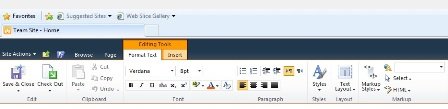
Next, from the Insert Tab select Web Part to add our new web part.
This will open the panel below the top ribbon bar for adding a new web part. This
panel contains Categories list of the web parts, next to that list of web parts
available and next to that, information panel for the selected web part.
Now, from the Categories, select Custom. This will list out all the custom web parts
added to the web part gallery. From the Web Parts list, select our VisualWebPart1,
and click Add button at the bottom right corner of the panel.
Now your page will look like one shown in the below image.
Now, to save changes and close edit mode of the page, go to Page tab and click “Save
& Close” button.
Now, you can see that our web part lists out all the lists provisioned on the site,
all the features activated on the web site and the sub sites created in the current
site if found any.
So, this way we can develop a custom web part using Visual Web Part design feature
provided by Visual Studio 2010 for SharePoint 2010. Here we have just explored
a simple web part example, but you can develop a complex web part with complex
functionalities.
You can download the fully working sample code from here.