| ASP.NET Scrollable Table Server Control |
| By Jon Wojtowicz |
|
 Download Source Code Download Source Code |
| After working on several consulting assignments, I noticed I was using a lot of scrollable tables in HTML. These were created using Repeater controls since most of the time I needed to have the column headers remain stationary. Afer creating several variations of user controls, I decided to create a single server control to use across multiple projects. This was my journey on my first server control. |
| Since I needed only single direction scrolling, I decided that it would be IE specific. I also needed to support some type of data binding. After a couple weeks of effort I had a scrollable table control that would work for the projects I had created. Then the inevitable occurred, a requirements change. On my next project, not only did the column headers need to remain stationary but the left columns needed to remain visible while the remainder of the table scrolled. This is behavior similar to Excel with locked rows and columns. |
| I had worked on a similar page in classic ASP and knew the complexity of creating such a table. Now I was working in .Net and had to figure how to dynamically create that structure within a control. The other option would have been to manually generate all the HTML using standard markup. I decided that creating a server control was the best approach since I needed the table on several pages. |
| The End Result |
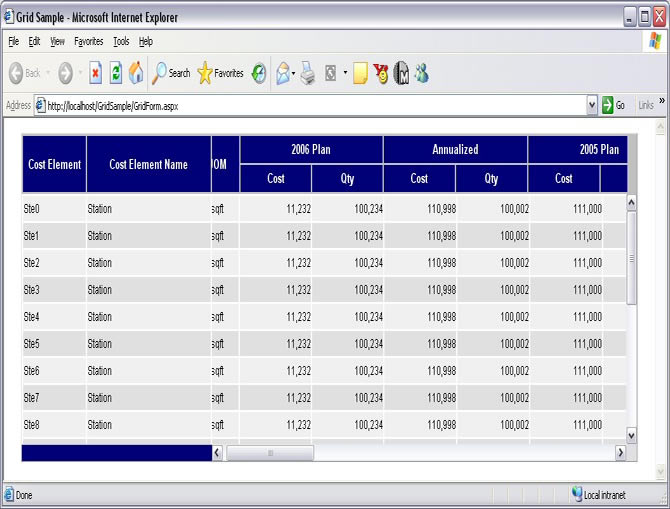
| The control I created appears on a page as displayed in Figure 1. An arbitrary number of left or right columns can be locked
from scrolling horizontally. The columns would still scroll vertically. The remaining columns would scroll both horizontally and vertically. |
| Figure 1. |
 |
| Supported Column Types |
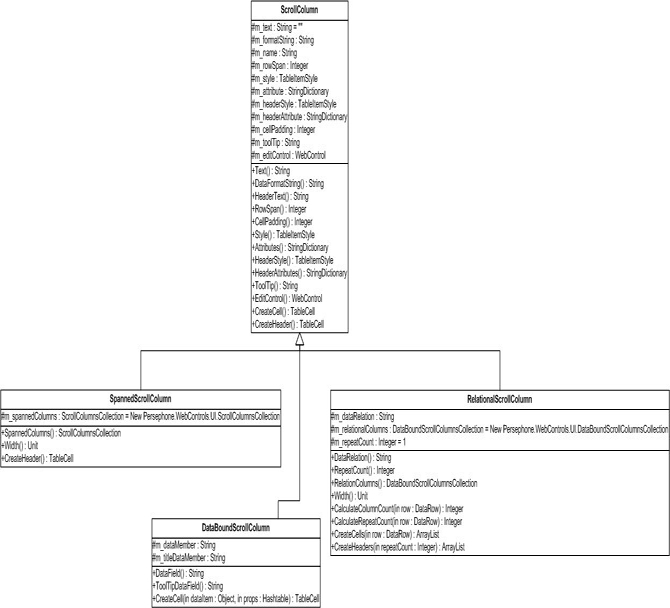
| In the design I needed to support different column structure within the table. I created a base ScrollColumn class
that had all the shared properties that I needed. I derived three additional column type to support the various formatting, DataBoundColumn for simple data binding, SpannedScrollColumn to allow for the column header to span across multiple columns, and the RelationalScrollColumn to allow a single row to have repeating relational data. The class diagram for the columns is shown in Figure 2. |
| Figure 2. |
 |
|
|
| Data Binding |
| I needed to support the standard data binding pattern for the output. I followed Microsoft's recommended
pattern for data bound controls. The main method I needed was the DataBind. this would create the child control hierarchy. The code for the
DataBind was easy to implement and is as follows: |
               Public Shadows Sub DataBind()
                MyBase.OnDataBinding(EventArgs.Empty)
                ' clear all previous controls
                Controls.Clear()
                ' create a new control heirarchy since the control does not use view state
                CreateControlHierarchy()
                ' set the flag that the children have been created
                ChildControlsCreated = True
            End Sub
|
| The main work was in the CreateControlHierarchy method. This method is responsible for
resolving the data source and creating the child controls needed. The first step was to resolve the data source in a GetDataSource method.
this was implemented as follows: |
            Protected Overridable Function GetDataSource() As IEnumerable
                ' guard against nothing
                If IsNothing(m_dataSource) Then Return Nothing
                ' if this is an IEnumerable then we already have the data source
                If TypeOf (m_dataSource) Is IEnumerable Then Return m_dataSource
                ' search through the list source
                If TypeOf (m_dataSource) Is IListSource Then
                    Dim listSource As IListSource = CType(m_dataSource, IListSource)
                    Dim memberList As IList = listSource.GetList()
                    ' if the datasource has only one list, use the list
                    If Not listSource.ContainsListCollection Then
                        Return CType(memberList, IEnumerable)
                    End If
                    ' if we have a typed list as our collection, move throught to find the data memeber
                    If TypeOf (memberList) Is ITypedList Then
                        Dim typedMemberList As ITypedList = CType(memberList, ITypedList)
                        Dim propDesc As PropertyDescriptorCollection = typedMemberList.GetItemProperties(Nothing)
                        Dim memberProperty As PropertyDescriptor = Nothing
                        Dim exceptionString As String
                        If Not IsNothing(propDesc) Then
                            If propDesc.Count <> 0 Then
                                ' if the datamember is an empty string, use the first list
                                ' otherwise try to find  the data member
                                Dim dataMember As String = m_dataMember
                                If dataMember.Length = 0 Then
                                    memberProperty = propDesc(0)
                                Else
                                    memberProperty = propDesc.Find(dataMember, True)
                                End If
                                ' if we have found the datamemeber, process it
                                If Not IsNothing(memberProperty) Then
                                    Dim listRow As Object = memberList(0)
                                    Dim list As Object = memberProperty.GetValue(listRow)
                                    If TypeOf (list) Is IEnumerable Then
                                        Return CType(list, IEnumerable)
                                    End If
                                End If
                            Else
                                Throw New Exception("A list corresponding to the selected DataMember was not found")
                            End If
                        Else
                            Throw New Exception("A list corresponding to the selected DataMember was not found")
                        End If
                    Else
                        Throw New Exception("The selected data source did not contain any data members to bind to.")
                    End If
                End If
                Return Nothing
            End Function
|
| To get the client side behaviour I also needed to emit the client script and create my own unique ids
for the various control elements. I found it is easier to write the static script, test and debug before trying to create it dynamically. Once the script has been tested, you can then add the format insertion points to relate back to the control ids. |
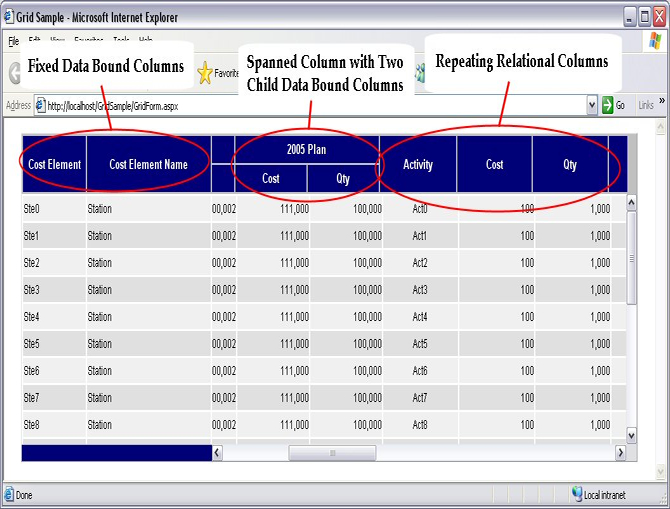
| Now that I had the basics of the control created I wrote the helper methods to render the
appropriate control tree. The various parts of the control and columns are listed in Figure 3. I had to add what I essentially refer to as "fudge factors" obtaining the column alignment. You can still see some misalignment in the column lines but this was not an issue as long as the scrolling functionality was provided. |
| Figure 3. |
 |
| Originally the control was designed to be read only. Any edit would be accomplished through a separate
page. The end users insisted on being able to edit the data in the grid. This posed a special challenge since an individual row is actually two
distinct rows in two separate tables. Obviously I had to implement the IPostBackDataHandler to get the data back when the page was post back.
another issue I had to overcome was how could I determine which control to use for the cells. There was also an issue of only some of the columns
could be edited. The approach I chose was to allow each row to have a control bound to it by the calling page. I would then bind the data from
the postback to the appropriate control so the page could have the data in a seamless manner. I also implemented an auto postback if the user
changed the data and navigated off the row. |
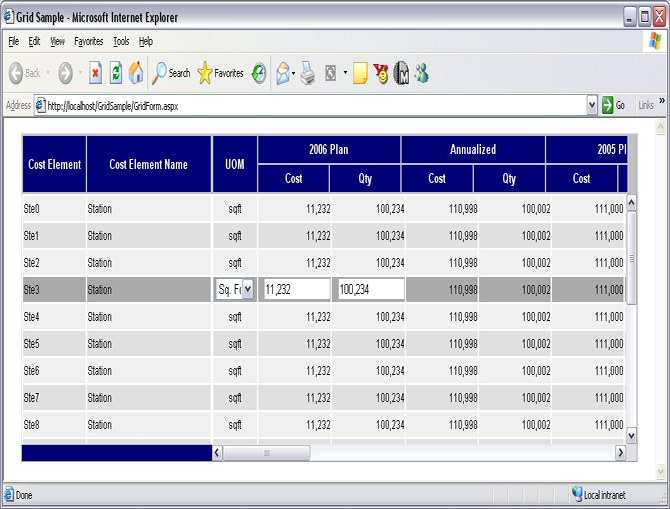
| The way I implemented the edit controls was to create an invisible div where I would actually emit the
controls. In each cell that had an associated edit control, I added an edit attribute. When the user would select a row, I would walk the cells
in the row and insert the control into the appropriate cells. If the data was unchanged when the user navigated off the row, no postback would
occur. This provided the user with the experience they wanted. A selected row for editing can be seen in Figure 4. |
| Figure 4. |
 |
| Limitations |
| While the code was designed to handle some fairly complex data display it is not foolproof.
Certain combinations of columns and edit controls may not work as expected. The control is fairly flexible and will allow you to do a lot of combinations. The result may not be what you expect and it will only works with Internet Explorer.
|
|
| The sample project including with the code should provide you with information on how to use the control. The control does not have a designer built with it. Unfortunately when creating the control there was not enough time to create one. Also the code was written several years ago and could probably use some revisions to make it cleaner. I am not supporting the code so it is presented
"as is". |