There are different types of caching that can be implemented in ASP.NET; these run
from the database and the server all the way to the browser. You can configure
caching in four different ways:
• Using IIS Manager
• By directly editing an XML configuration file
• Declaratively, in an ASP.NET page or control
• Programmatically, in code-behind or in an HttpModule
Browser Cache
Files that the browser retrieves from your server should be stored in the browser’s
cache as long as possible to help minimize server round-trips. If a page and
all the resources it requires are in the browser’s cache, no server round-trips
are required and the browser can render the page using only its cached content.
Since that presents no load on the network or the server, it is good for scalability
and performance.
Every object stored in the browser cache includes an expiration time, beyond which
the browser considers the content stale. You can manage those expiration times
with the Cache-Control:max-age HTTP header.
If neither the Expires nor Cache-Control: max-age HTTP headers is set, then IE still
stores the content in its cache, but it is marked stale.
For stale content, IE does a conditional GET when it is referenced the second and
subsequent times (only once per page), asking the server to confirm that the
content hasn’t changed since the last time it was retrieved.
IE includes the If-Modified-Since and If-None-Match headers to ask the web server
whether the content has changed since the last time it was requested. IIS responds
with 304 Not Modified, indicating that the content hasn’t changed. It also includes
headers with the current values of Cache-Control, Last-Modified, and ETag. Even
though the responses to conditional GETs are short, the round-trips alone can
have a big effect on performance. Until the interval that you specify with Cache-Control:
max-age passes, the content will remain active in the cache, and the browser
won’t need to make these extra server round-trips.
Setting Cache-Control: max-age
You can set Cache-Control: max-age for static content using IIS Manager. First, select
HTTP Response Headers. Then click Set Common Headers on the upper right, and
select Expire Web content.
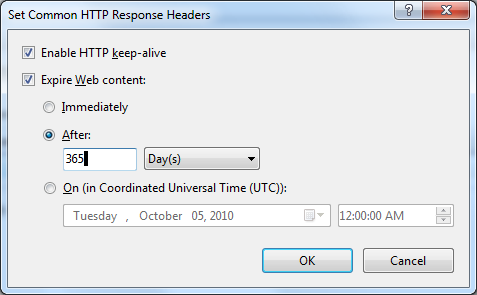
The HTTP 1.1 standard recommends one year in the future as the maximum expiration
time. You should use that as the default for all static content on your site.
Disabling Browser Caching
You can disable browser caching for a particular static file or folder by selecting
it first in the left-hand panel in IIS Manager, then bringing up the same dialog
box, and finally selecting Expire Web Content and Immediately.
This results in the following HTTP header: Cache-Control: no-cache
You can also disable static file caching in web.config. For example, for a file called
avatar.jpg in the top-level folder of your site, you’d have the following:
<configuration>
<location path="avatar.jpg">
<system.webServer>
<staticContent>
<clientCache cacheControlMode="DisableCache" /> </staticContent>
</system.webServer>
</location>
</configuration>
You will need to set client cache expiration times for dynamic content declaratively
in the .aspx file or set it programmatically.
Caching Dynamic Content
In general, dynamic content should have an expiration time of between 1 and 30 days,
depending on the parameters of your application. An example of doing that declaratively
is to place an OutputCache directive at the top of your .aspx page:
<%@ Page . . . %>
<%@ OutputCache Duration="86400" Location="Client" VaryByParam="None" %>
That tells the runtime to generate HTTP headers that ask the browser to cache the
page for 86,400 seconds (one day). You must include VaryByParam, or the parser
will generate an error. A value of None means that multiple versions of the page
do not need to be cached independently. The resulting HTTP headers are as follows:
Cache-Control: private, max-age=86400
Expires: Tue, 17 Mar 2009 01:34:17 GMT
Cache-Control: private prevents proxies from caching the response. ASP.NET also includes
an Expires header. You can also generate the same headers programmatically, either
from code-behind or from an HttpModule. Here’s an example:
protected void Page_Load(object sender, EventArgs e)
{
this.Response.Cache.SetExpires(DateTime.Now.AddDays(1.0)); TimeSpan ds = new TimeSpan(1, 0, 0, 0);
this.Response.Cache.SetMaxAge(ds);
}
The call to SetExpires() is optional and can be safely omitted. Cache-Control: private
is the default and does not need to be set explicitly.
If your content changes more often than once per day, even short client-side expiration
times (1 to 10 minutes) can still be useful to prevent extra round-trips when
users click the Back button in the browser to go back to one of your pages.
Using Cache Profiles
When you’re using OutputCache directives, it’s also a good idea to use centralized
cache profiles to help ensure consistency and to minimize the effort needed to
make subsequent changes. The first step is to define a cache profile in your
web.config file. Using the previous example, define a profile called Cache2Days:
<system.web>
<caching>
<outputCacheSettings>
<outputCacheProfiles>
<add name="Cache2Days" duration="172800"
location="Client" varyByParam="none" /> </outputCacheProfiles>
</outputCacheSettings>
</caching>
</system.web>
After you define the profile, just reference it from the OutputCache directive;
<%@ OutputCache CacheProfile="Cache2Days" %>
Disabling Caching
You should disable browser caching of dynamic content only where data must always be the absolute latest, where it can change in response to the user’s state (such as whether they are
logged on), or where the page contains sensitive data that should not be stored
on the browser. Unfortunately, you can’t disable browser caching declaratively
with the OutputCache directive. Instead, it requires a programmatic approach.
An example:
protected void Page_Load(object sender, EventArgs e)
{
this.Response.Cache.SetCacheability(HttpCacheability.NoCache);
}
HttpCacheability.NoCache will disable caching on both the client and the server.
The resulting HTTP headers are as follows:
Cache-Control: no-cache
Pragma: no-cache
Expires: -1
You can eliminate the Expires header as follows:
this.Response.Cache.SetAllowResponseInBrowserHistory(true);
The Expires: -1 header is supposed to prevent the page from being placed on the
browser’s history list so that you can’t use the browser’s Back button to navigate
to it again. However, it is not guaranteed to work in all browsers.
ViewState
ViewState is used by the controls in a page to restore their state during a postback.
State in this context can include the values of control properties, results of
data binding, or input from users. The specifics vary by control.
ViewState does not re-create custom controls on the page or restore posted values
to controls, and you should not use it for session data, since it’s specific
to a page, not a session. It cannot be used for server-only objects, such as
database connections, and it is not valid after you do a server-side redirect
with Server.Transfer(). Unlike plain HTML, controls do have their posted values
restored during an ASP.NET postback, but the mechanism doesn’t use ViewState.
For example, say you have a page with ViewState disabled that contains an <asp:DropDownList>.
If the user selects a value from the list and then submits the form, the runtime
will restore the value on the page that it generates for the postback. The same
is not true for static HTML.
ViewState is useful from a caching perspective because it allows you to cache information
that is associated only with a particular page as part of the page itself.
As an alternative to using the query string (which is "hackable"), you
can store the current sort order of a grid or other control in ViewState:
private const string SortStateKey = "SO";
private const string SortAscending = "a";
public bool IsSortAscending { get; set; }
protected void Page_Load(object sender, EventArgs e)
{
if (IsPostBack)
{
string prevSort = (string)this.ViewState[SortStateKey];
this.IsSortAscending = prevSort == SortAscending;
}
else
{
this.ViewState[SortStateKey] = SortAscending; this.IsSortAscending = true;
}
}
ControlState is similar to ViewState, in that it also contains page-specific, control-specific
state information. However, unlike with ViewState, you can’t disable ControlState.
It contains information that is required in order for a control to work.
Disabling ViewState
<%@Page Language="C#" EnableViewState="false" AutoEventWireup="true" CodeFile="MyPage.aspx.cs" Inherits="MyPage" %>
The above is the preferred method to disable ViewState on a per-page basis. You should
enable ViewState only in pages that post back to the server; pages that don’t
post back don’t need ViewState.
Storing ViewState on the server
The following article provides more details and a way to store ViewState on the server: http://www.eggheadcafe.com/tutorials/aspnet/b48875f6-525b-4267-a3a8-64dd33bfc2fe/keep-viewstate-out-of-pag.aspx
Cookies
Cookies are name/value pairs of strings that are stored on the client. Cookies are
set when the browser receives a Set-Cookie HTTP header in a response from the
server. Browsers send the cookie back to the server later if the requested URL
matches the path and domain restrictions associated with the cookie when it was
first set and if the cookie hasn’t expired. Cookies should be used to cache
state information and other data that is specific to a particular user and that
is needed across multiple pages.
You can set cookies either by setting HTTP headers from ASP.NET, by using JavaScript
on the client, from Silverlight, or through configuration settings in IIS. They
can be set in the response from a standard .aspx page, from an .asmx web service,
or even with static content such as an image. You can also set them from some
WCF services, although the approach is somewhat complicated since WCF is designed
to be protocol independent and cookies are a feature of HTTP.
Here is an example of setting a cookie:
protected void Page_Load(object sender, EventArgs e)
{
HttpCookie cookie = new HttpCookie("name");
cookie.Value = "value";
cookie.Path = "/"; // root of the site
cookie.Domain = "eggheadcafe.com";
cookie.HttpOnly = false;
cookie.Expires = DateTime.Now.AddYears(1);
this.Response.AppendCookie(cookie);
}
HttpOnly
The HttpOnly property tells the browser not to make the cookie visible to JavaScript.
Consider setting it by default to true to help reduce your application’s attack
surface, including the risk of things such as script-based session hijacking.
Reading Cookies
When the browser sends cookies to the server or when you use script or Silverlight
to read them on the client, the only thing they contain is the name/value pair.
Any properties that were originally set on them are not visible. Here’s an example
of reading cookie values:
protected void Page_Load(object sender, EventArgs e)
{
HttpCookie cookie = this.Request.Cookies["name"];
if (cookie != null)
{
string value = cookie.Value;
}
}
You can also store binary data in cookies by Base64 encoding the bytes. Be advised
that the data length cannot exceed about 4000 bytes for most browsers. Cookies can also represent binary serialized, compressed data. This article shows how.
Using a Compact Privacy Policy
Although most browsers readily accept cookies, Safari and IE6 and later browsers
make it possible for users to selectively accept them using “privacy” settings.
First-party cookies are set from pages that are in the same domain as the top-level
page (the one in the address bar). Cookies set from all other domains are considered
third-party. The default privacy setting in IE6 and later is Medium, which blocks
third-party cookies that don’t have a compact privacy policy.
The Medium privacy setting also blocks third-party cookies and restricts first-party
cookies that include information that can be used to contact you without your
explicit consent. The browser figures that out based on a compact privacy policy
that the site provides.
You can see the privacy setting in IE7 or IE8 by selecting Tools -> Internet Options.
Then click the Privacy tab.
Compact privacy policies are encoded in an HTTP header that is sent to the browser
along with the rest of the response to a web request. The process of creating
one normally involves filling out a lengthy questionnaire. Several sites online
can help you create one that’s appropriate for your site, although they often
charge a fee. Free software is also available that can help you. As an example,
here is a simple one:
P3P: CP="NID DSP CAO COR"
With that HTTP header in place, IE would accept both first-party and third-party
cookies from your site. You can add this header either programmatically:
protected void Page_Load(object sender, EventArgs e)
{
this.Response.AddHeader("P3P", "CP=\"NID DSP CAO COR\"");
}
or set it in IIS (easier).
Using the Cache-Control HTTP Header
The main HTTP header that controls caching in proxies is Cache-Control. When set
to private, a proxy must not cache the response. When set to public, a proxy
can cache the response, although it’s not required to.
The ASP.NET runtime marks all dynamic content with Cache-Control: private by default
so that proxies won’t cache it. You should override that setting for dynamic
content that is the same for all users by marking it with Cache-Control: public.
The following example configures the Cache-Control header to tell both proxies
and browsers that they can cache the page for 60 seconds:
protected void Page_Load(object sender, EventArgs e)
{
TimeSpan age = TimeSpan.FromSeconds(60.0); this.Response.Cache.SetMaxAge(age);
this.Response.Cache.SetCacheability(HttpCacheability.Public);
this.Response.Cache.SetNoServerCaching();
}
Calling SetCacheability(HttpCacheability.Public) enables server-side output caching
in addition to client and proxy caching. SetServerNoCaching() disables caching
on the server without affecting client and proxy caching. You can do the same
thing declaratively, using the OutputCache directive:
<%@ Page . . . %>
<%@ OutputCache Duration="60" Location="Downstream" VaryByParam="None" %>
A Location setting of Any (the default) is similar, except it doesn’t disable server
caching. Usually, if a page can be stored in a proxy cache, it can also be stored
in the server’s cache.
Web Server Caching
Web servers can cache content in a number of different ways to help improve performance.
The server can cache an entire HTTP response in the kernel, in IIS, or in the
ASP.NET output cache. It can also cache parts of response in the form of generated
HTML fragments, as well as objects that the server uses to create the page, such
as the results of database queries.
Kernel Cache
Windows includes a kernel-mode HTTP driver called http.sys. Since HTTP is a networking
protocol, the benefits of putting support for HTTP in the kernel are similar
to those for putting TCP support there, including higher performance and increased
flexibility.
Doing low-level protocol processing in the kernel makes it possible for multiple
processes to bind to port 80, each receiving requests for a particular host.
http.sys also handles request queuing and caching without the context switch
overhead that would be involved with user-mode code. The driver can return cached
responses directly to clients, entirely bypassing user mode. That avoids several
kernel/user context switches, which reduces latency and improves throughput.
Kernel HTTP caching is enabled by default for static files and is disabled by default
for dynamic files.
Limitations of Kernel Caching
http.sys will cache responses only under certain limited conditions. The conditions
that you’re most likely to encounter that will prevent it from caching a response
include the following:
• The request contains a query string.
• The requested file is accessed as a default document. For example, if default.htm
is the default document in the top-level folder, then http.sys will not cache it
if the incoming URL is http://www.yoursite.net/. However, http.sys can
cache the document when you access it using http://www.yoursite.net/default.htm.
• Dynamic compression is enabled and is used for the response. You’re less likely
to encounter the other conditions:
• The request is not anonymous.
• The request requires authentication (for example, the request contains an Authorization
header).
• The web site is configured to use a footer.
• The static file is a Universal Naming Convention (UNC) file, and the DoDirMonitoringForUnc
registry key is not enabled (UNC files are those that start with \\hostname\
instead of a drive letter).
You can use the DoDirMonitoringForUnc registry property (a DWORD value) to switch
the static file cache for UNC files back to a change notification cache. This
is set at HKLM\System\CurrentControlSet\Services\Inetinfo\Parameters. The default
value is 0, or not enabled. You can set it to 1 to enable caching of UNC static
content based on change notification.