With release of Microsoft Office System 2007, Microsoft introduced the use of Office
Open XML file formats. These Office Open XML file formats allows to create or
generate Office Word 2007 and Office Excel 2007 files on the web server without
physical installation of a Office Word or Excel desktop applications. In this
article we will also explore how these Open XML file formats are useful in developing
custom application for Windows SharePoint Services and Microsoft Office SharePoint
Servers.
In 2006 ECMA International approved Office Open XML file format specification as
the ECMA 376 standard and was under review by the ISO international standards
body at press time. As a goal of this article, we will explore these file formats
to familiar you up and make you familiar with programming model required to create
simple Word documents in the WSS solution.
With the use of old binary file formats of Office applications, it was too much difficult
and challenging to write and deploy applications that could read, modify and
generate those documents with respect to service-side execution. Introduced in
1997, the binary file formats for Word, Excel and PowerPoint and those were used
till Microsoft Office 2003 editions. These binary file formats are too difficult
and too tricky for most of the developers to work with directly because a little
code mistake in generating or modifying Office document typically damages entire
file. So to avoid this type of mistakes most of the developers have to be dependent
on their own object model of Office 2003 editions or earlier versions.
The object model of the applications such as Word or Excel gives better performance
on desktop rather than server when used in custom applications and components.
So these types of applications are never developed and designed to be run on
server side. In the server side scenarios, the applications can read and write
without use of hosting applications’ object model use and this is much more difficult
to achieve. But, in Microsoft Office 2000 and Microsoft Office 2003 editions,
the introduction for using XML to create the document part. This has also advanced
the capability of writing the portions of document using .NET Framework in some
context.
But, with the release of Microsoft Office 2007, Microsoft has adopted total and complete
use of the Office Open XML file formats for documents created by Word and Excel
and PowerPoint. And these Office Open XML file formats are considered as blessings
for WSS and MOSS developers as, these file formats do not require the installation
of Microsoft Office Applications on the web hosting servers, where they need
to create these documents using code and make them downloadable for the end user.
Now, we will explore the internal details and parts of Microsoft Office 2007 Word
documents.
Internals of Microsoft Word 2007 documents
We will start this section by looking at the structure of a simple Word document
based on the Office Open XML file format. This Office Open XML file formats are
nothing but a standard ZIP file and based on standard ZIP file technology. Just
its file extension is changed so we don't realize that they are ZIP files. Each
file at the top-level is saved as ZIP archive. This means that we can open a
Word or Excel document just same as standard ZIP file and can dive into details
of that file using the ZIP file support provided in Windows or any other ZIP
utility tool.
Also, we all know that with the release of Microsoft Office 2007, Microsoft has changed
the file extensions for the Office suit of applications, such as Word, Excel
and PowerPoint. The new file extension for Word is .docx, Excel is .xlsx and
so on. Here the extra 'x' indicates that these files are based on Office Open
XML file formats. Also, they continued to support the old binary file formats
which are much more familiar to most people like .doc, .xls.
After installation of Word 2007 on machine, we can create a new Word document and
can add text whatever we want. For our example, create a new Word document and
write some sample text like, copy text from this article and paste in it and
save it as MyArticle.docx. Now close the Word application, as if this is kept
open we can't rename our saved file that we are going to do next. Now, navigate
to the location where you have saved the MyArticle.docx file using Windows Explorer.
Now, rename it to MyArticle.zip. Renaming the file to ZIP, makes the Windows
Explorer to recognize the file as a standard ZIP archive. Now, we can open that
ZIP file and can see the structure of folders and files that Word created.
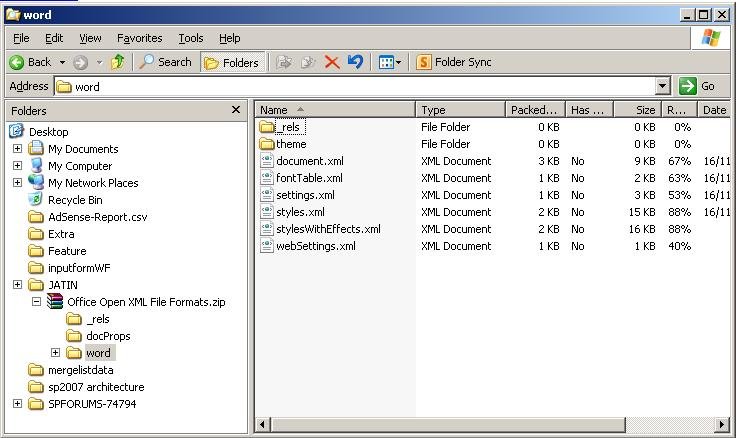
As shown in the above image, we can see that there are most of xml files are there
structured in different folders. Now, we will see some basic terminology and
concepts used to configure documents in Office Open XML file formats. The top-level
file means MyArticle.docx is known as a package. As this package is used as a
standard ZIP archive, it automatically provides compression. This also makes
the contents directly accessible to many other existing utilities and APIs on
Windows and non-Windows platforms in the same way.
In the package there are two types of internal components: 1. Parts and 2. Items.
Generally, parts are housing the content and items house the metadata means data
about the parts. These items are further divided into relationship items and
content-type items.
A part is the internal component housing content that is persisted inside the package.
As we can see that most of the files are simple text files serialized as XML
with an associated XML schema. Also, these parts can also be serialized as binary
data when storing images or media files in Word document.
A part is identified by the name of uniform resource identifier (URI) type which
contains the relative path in the package file combined with the part file name.
For example, the main part in the package for a Word document is named /word/document.xml.
The following list of xml files are some more examples for the parts stored in
the package file.
/word/fontTable.xml
/word/settings.xml
/word/styles.xml
/stylesWithEffects.xml
/webSettings.xml
/docProps/app.xml
/docProps/core.xml
To define the relations between a source and a target parts, Office Open XML file
formats use relationships. The package relationship defines an association between
the top-level package and a part. A part relationship defines an association
between a parent part and a child part.
These relationships are very important because they don't concern about the content
of part. Relationships are independent of content-specific schemas and so, they
are faster to resolve. Other benefit is that without modifying the parts we can
create a relationship between them.
Relationships are housed in internal components known as relationship items. A relationship
item is stored in the package same as a part, but they are not considered as
part. For consistency, these relationship items are always stored in folders
named _rels.
As for our example, the MyArticle.zip file contains exactly one package relationship
item named /_rels/.rels. This relationship item contains XML elements to define
package relationships, such as the relation between top-level package for the
.docx file and the internal part /word/document.xml file.
<?xml version="1.0" encoding="utf-8" ?>
<Relationships xmlns="http://schemas.openxmlformats.org/package/2006/relationships">
<Relationship Type="http://schemas.openxmlformats.org/officeDocument/2006/relationships/officeDocument"
Target="word/document.xml" Id="rId1" />
</Relationships>
As we can see in the above listing, a Relationship element contains a name, type
and target path. Also, the type name for a relationship is defined by using the
same conventions used to create XML namespaces. a package can also contain one
or more part relationship items. For example, you should define relationships
between /word/document.xml and child parts inside a package relationship item
located at the URI /word/_rels/document.xml.rels. Here note that the Target attribute
for a relationship in a part relationship item is a URI relative to the parent
part not to the top-level package.
Each part in the package is considered and defined as specific content type. A content
type in the package is metadata that defines a part's media type, a subtype and
a set of optional parameters. Any content type used in a package must be defined
inside a component named as content type item. Each and every package has exactly
one content type item named /[Content_Types].xml. The following listing shows
the content of /[Content_Types].xml file of a typical Word document.
<?xml version="1.0" encoding="utf-8" ?>
<Types xmlns="http://schemas.openxmlformats.org/package/2006/content-types">
<Default Extension="rels" ContentType="application/vnd.openxmlformats-package.relationships+xml" />
<Default Extension="xml" ContentType="application/xml" />
<Default Extension="jpeg" ContentType="image/jpeg" />
<Override PartName="/word/document.xml" ContentType="application/vnd.openxmlformats-officedocument.wordprocessingml.document.main+xml"
/>
<Override PartName="/word/styles.xml" ContentType="application/vnd.openxmlformats-officedocument.wordprocessingml.styles+xml"
/>
<Override PartName="/word/stylesWithEffects.xml" ContentType="application/vnd.ms-word.stylesWithEffects+xml" />
<Override PartName="/word/settings.xml" ContentType="application/vnd.openxmlformats-officedocument.wordprocessingml.settings+xml"
/>
<Override PartName="/word/webSettings.xml" ContentType="application/vnd.openxmlformats-officedocument.wordprocessingml.webSettings+xml"
/>
<Override PartName="/word/fontTable.xml" ContentType="application/vnd.openxmlformats-officedocument.wordprocessingml.fontTable+xml"
/>
<Override PartName="/word/theme/theme1.xml" ContentType="application/vnd.openxmlformats-officedocument.theme+xml" />
<Override PartName="/docProps/core.xml" ContentType="application/vnd.openxmlformats-package.core-properties+xml" />
<Override PartName="/docProps/app.xml" ContentType="application/vnd.openxmlformats-officedocument.extended-properties+xml"
/>
</Types>
Content types are used for interpretation for how to read and render the content
of parts. As you can see the default content type is associated with a file extension,
such as .rels or .xml. The Override elements in the above listing are generally
used to define a specific part as content type that differs from the default
content type associated with its file extension. For example, /word/document.xml
is associated with an Overried content type that differs from the default content
type used for files with an .xml extension.
Create First.docx file programmatically
The .NET Framework 3.0 is powered with new packaging APIs, which are part of WindowsBase.dll
assembly. This packaging APIs are aware of the Office Open XML file formats,
they are easy and handy component to manage Office Open XML files. For example,
certain convenience methods make it easy to add relationship elements to a relationship
item and add content type elements to a content type item. Also, packaging APIs
allows the management of things without touching relationship or content type
items directly.
To start programming against the packaging APIs in Visual Studio 2008, we need to
add the reference to the WindowsBase assembly. Let us begin by creating a simple
console application that generates a .docx file using the Office Open XML file
formats. The classes that used for packaging API are conteined in the System.IO.Package
namespace. See the following code listing that shows the creating of a blank
package.
using System;
using System.IO;
using System.Xml;
using System.IO.Packaging;
namespace FirstDocx
{
public class Program
{
public static void Main(string[] args)
{
Package package = Package.Open(@"C:\First.docx", FileMode.Create, FileAccess.ReadWrite);
package.Close();
}
}
}
As per the above listing the we have used Package class's static method Open to create
a new package. We can also use the same for opening the existing packages as
well. This Package class is housed inside the System.IO.Package namespace. As
this is the IO operation class same like other IO classes, this also need to
be closed after working to release the related resources or related file. Now,
our blank package is created. Once this is done, our next step is to create one
or more parts and serialize content into them. For our example, we will create
a single part named /word/document.xml. We can create a part by calling the CreatePart
method on an open Package object and passing URI and a string-based content type
as parameters.
Uri uri = new Uri("/word/document.xml", UriKind.Relative);
string partContentType = "application/vnd.openxmlformats-officedocument.wordprocessingml.document.main+xml";
PackagePart documentPart = package.CreatePart(uri, partContentType);
StreamWriter streamPartWriter = new StreamWriter(documentPart.GetStream(FileMode.Create, FileAccess.Write));
As we can see from above listing, CreatePart method of Package class is used to create
the document part. This method is provided with type parameters: URI based on
the path /word/document.xml and the content type which is required by Office
Open XML file formats for the part in a word processing document. Once the part
is created, it needs to be serialized with content by using same traditional
stream-based programming techniques. As per example, for this we have created
a StreamWriter object by initialized by calling the GetStream method and passing
that as parameter.
The StreamWriter object is used to serialize the "My first Word 2007 document"
into document.xml. However, we need to see what the resulting XML is looking.
See the following XML listing that represents the serialized document.xml.
<?xml version="1.0" encoding="utf-8"?>
<w:document xmlns:w="http://schemas.openxmlformats.org/wordprocessingml/2006/main">
<w:body>
<w:p>
<w:r>
<w:t>My first Word 2007 document</w:t>
</w:r>
</w:p>
</w:body>
</w:document>
Note that all the XML documents are defined within the http://schemas.openxmlformats.org/wordprocessingml/2006/main"
namespace as per the Office Open XML file formats specifications. The XML document
contains the top level document element, housing the body element that contains
the main content of Word document. In the bode element there is a <p> element
representing paragraph. Within the <p> element, there is a <r> element
that defines a run. A run is a region of elements that share the same set of
characteristics. Within each run is a <t> element that defines a range
of text. So, it is now time to generate this XML segment for document with code
by using the XmlWrite class from System.Xml namespace. See the following code
listing.
Uri uri = new Uri("/word/document.xml", UriKind.Relative);
string partContentType = "application/vnd.openxmlformats-officedocument.wordprocessingml.document.main+xml";
PackagePart documentPart = package.CreatePart(uri, partContentType);
StreamWriter streamPartWriter = new StreamWriter(documentPart.GetStream(FileMode.Create, FileAccess.Write));
string namespaceWP = "http://schemas.openxmlformats.org/wordprocessingml/2006/main";
XmlWriter writer = XmlWriter.Create(streamPartWriter);
writer.WriteStartDocument();
writer.WriteStartElement("w", "document", namespaceWP);
writer.WriteStartElement("body", namespaceWP);
writer.WriteStartElement("p", namespaceWP);
writer.WriteStartElement("r", namespaceWP);
writer.WriteStartElement("t", namespaceWP);
writer.WriteValue("My first Word 2007 document");
writer.WriteEndElement(); //close t
writer.WriteEndElement(); //close r
writer.WriteEndElement(); //close p
writer.WriteEndElement(); //close body
writer.WriteEndDocument();
writer.Close();
At this stage we have finished with XML content into document.xml. Now we need to
create a relationship between the package and document.xml by using the CreateRelationship
method of the Package object. This is very easy process as shown in the below
listing.
//create the relationship part
string relationshipType = "http://schemas.openxmlformats.org/officeDocument/2006/relationships/officeDocument";
package.CreateRelationship(uri, TargetMode.Internal, relationshipType, "relshipId1");
package.Flush();
As you can see we have used Flush method after the call to CreateRelationship. This
forces the packaging API to update the package relationship item with the proper
relationship element. And then call to Close method closes the package and releases
the handle to MyFirst.docx file.
Till now we have discussed all the necessary steps to generate a simple .docx file
from the console application developed with C#.
Closer Look at Relationships
The structure of package is mostly dependent on relationships in Office Open XML
file formats. If parts are created for the document, but not associated them
to the package through relationships, then the applications (such as Word) which
consumes the file are not able to parse them because every part must have a relationship
or a chain of relationships that associate it with its parent package. As discussed,
package relationships define an association of package to its top-level parts.
Part relationships define a parent-child relationship between two parts within
the same package. The part /word/document.xml has relationships to several different
child parts, such as /word/settings.xml and /word/styles.xml.
As per specifications for Office Open XML file formats, each and every part inside
a package must be related to the package itself directly or indirectly. A part,
such as /word/document.xml, is directly related to the package through a package
relationship. Another part, such as /word/styles.xml, is associated with the
package indirectly by relation with top-level part /word/document.xml.
A very important thing to remember is that a consumer application must be able to
discover any part within a package by enumerating through its relationships.
As well, your own written applications must also read packages created by other
applications, such as Word 2007 and Excel 2007, to discover the existing parts
by enumerating relationships.
Package Viewer Application
As per Office Open XML file formats specifications, all parts housed inside a package
must be discoverable through relationships. Therefore, it's possible to write
down an application that inspects a package and displays all of the parts inside
it. This package viewer application allows the user to select a package file
by using the standard Open File dialog box. Once the user selects a file the
application enumerates through all of the package relationships to find the top-level
parts. I'll not discuss each and every line of the code of the application. Please
download the application to see the full source code of this application.
private void openToolStripMenuItem_Click(object sender, EventArgs e) {
// get the fileName
if (OpenFileDialog.ShowDialog() == DialogResult.OK) {
// store the file name
m_fileName = OpenFileDialog.FileName;
// create the package node
TreeNode node = CreatePackageNode(m_fileName);
// clear the node list and add the new one
PackageView.Nodes.Clear();
PackageView.Nodes.Add(node);
// create the items under the root node, then expand it
BuildRelationships(node);
node.Expand();
}
}
The above code listing shows how the Office Open XML file is opened to discover its
parts. The method CreatePackageNode creates the top-level node.
private void BuildRelationships(TreeNode expandedNode) {
// open the package
using (Package package = Package.Open(m_fileName)) {
// get the relationships for the node
PackageRelationshipCollection relationships = GetRelationshipsForNode(package,
expandedNode);
// add a node for each relationshipType
SortedList<string, TreeNode> nodes = new SortedList<string, TreeNode>();
foreach (PackageRelationship relationship in relationships) {
TreeNode node = null;
if (relationship.TargetMode == TargetMode.External)
node = CreateExternalNode(relationship);
else
node = CreatePackagePartNode(package, relationship);
// add the node to the sorted list
nodes.Add(node.Text, node);
}
// add the nodes to the parent node
foreach (KeyValuePair<string, TreeNode> node in nodes)
expandedNode.Nodes.Add(node.Value);
}
}
The above method BuildRelationshps, opens the file using Packaging API and then travers
through each relationship and builds the tree view with each parts. Please download
the full source code and run the application and see how it works. The application
also provides the functionality to display the contents of any XML-based parts
within the package by reopening the package and getting stream-based access to
target part content. This content is written to a temporary file and then is
loaded into the Windows Forms WebBrowser control, which displays the XML content
with color coding and collapsible sections.
private void DisplayPackagePart(Uri partUri) {
// get the temp filename
string fileName = Path.ChangeExtension(Path.GetTempFileName(),
Path.GetExtension(partUri.OriginalString));
using (FileStream stream = File.Create(fileName)) {
// open the package
using (Package package = Package.Open(m_fileName)) {
// copy the data from the package part to the file
PackagePart part = package.GetPart(partUri);
using (BufferedStream partStream = new BufferedStream(part.GetStream())) {
int data = partStream.ReadByte();
while (data != -1) {
stream.WriteByte((byte)data);
data = partStream.ReadByte();
}
}
}
}
// setup the browser window
PackagePartPreview.Visible = true;
PackagePartPreview.Navigate("file://" + fileName);
}
The above code listing demonstrates how the package part file is saved to local disk
for temporary use and displayed in the WebBrowser control.
Binding Data to Word Content Controls
We end up the articel with look at one more technique provided by Microsoft Word
2007. Here we will discuss two new features of Word 2007 that could be used when
working with documents stored in the new Office Open XML file formats. The first
one is the XML Data Store, which allows the user to embed one or more user-defined
XML documents as parts inside a .docx file. The other feature is Content Controls,
which are user interface control defined inside the /word/document.xml part that
support data entry and data binding.
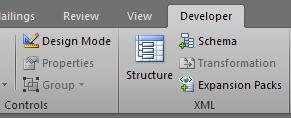
To work with and to explore the Content Controls feature of Word 2007, you first
need to have a Developer Tab in the Top Ribbon Bar. If you don't have then from
the option dialog enable Developer Tab.
Below image shows the developer Tab and the set of controls that can be used and
added to word document.
Remember that you can add Content Controls to only Word documents that are stored
in the new .docx file format. As, these Content Controls can not be defined using
binary format, they can't be used with older Word versions, such as Word 2003,
Word 2000. These Content Controls are added to a Word document as user input
elements. For example, you can create a Word document that solicits the user
for certain pieces of information to complete a business document.
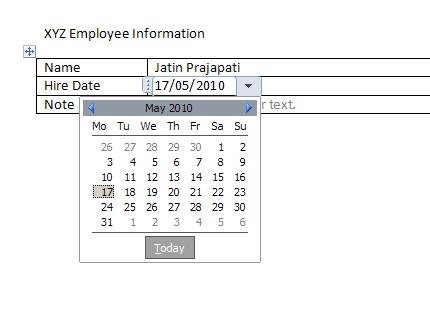
Content Controls have two different modes: edit mode and display mode. Edit mode
enables the user to do things like enter text, select a date from a date picker
or select an item from the drop-down list. Display mode is optimized for displaying
and printing. The editing facility is disabled for a user who is no longer in
edit mode.
Separate Data From Presentation in Microsoft Word 2007
Though the XML Data Store and Content Controls are two separate and independent features
of Word 2007, they provide a powerful functionality when used together. For example,
we can embed XML document customer data or an invoice inside a Word document.
Then can bind Content Controls to data inside this XML document by using XPath
experssions.
So, for out example, open the TestTemplate.docx file, provided with the example download.
We will use the following XML document to bind the data to the content controls
in our template.
<?xml version="1.0" encoding="utf-8"?>
<TestLetter xmlns:xsi="http://www.w3.org/2001/XMLSchema-instance"
xmlns:xsd="http://www.w3.org/2001/XMLSchema"
xmlns="http://testletter.com/2010/letters">
<Customer>
<FirstName>Jatin</FirstName>
<LastName>Prajapati</LastName>
<Company>My Software Solutions Pvt. Ltd.</Company>
<Address>Outsite Baroda City, Nr. Wild Jungle</Address>
<City>Vadodara</City>
<State>Gujarat</State>
<Zip>3900005</Zip>
</Customer>
<Date>December 01, 2025</Date>
<Body>We miss you. Please give us a call</Body>
<Employee>
<Name>Jaimin Thakar</Name>
</Employee>
</TestLetter>
Use of this technique involves manual efforts for manipulating the contents of the
.docx file that you needed to use as the template. So, change the file extension
from .docx to .zip of the downloaded file so that you can open the package file
directly and can add parts by dragging them into the package by using Windows
Explorer.
Save the above XML listing as part inside the TestTemplate.docx file using the URI
/customXml/item1.xml. Note that you can use any type of name for the xml file
instead of item1.xml. But for consistency with names that Word 2007 uses, we
name it as item1.xml.
The next step is that we need to write something that makes the consumer application
to identify this new added customer XML document. For this we will define a datastoreItem
with an identifying GUID, which is accomplished by creating a part named /customXml/ItemProps1.xml
file. The content of this file looks like below one:
<?xml version="1.0" encoding="utf-8"?>
<ds:datastoreItem ds:itemID="{040EE649-ADA8-45ca-B701-C88E40CB3DD6}"
xmlns:ds="http://schemas.openxmlformats.org/officeDocument/2006/customXml">
<ds:schemaRefs>
<ds:schemaRef ds:uri="http://www.w3.org/2001/XMLSchema" />
<ds:schemaRef ds:uri="http://testletter.com/2010/letters" />
</ds:schemaRefs>
</ds:datastoreItem>
Now, the next step is to create a part relationship between /word/document.xml and
/customXml/item1.xml. The relationship should define the parent part as /word/document.xml
and child part as /customXml/item1.xmls and the relationship is created using
the following string:
http://schemas.openxmlformats.org/officeDocument/2006/relationships/customXml
After this completed, we can directly fetch the data from datastoreitem from /word/document.xml.
Now we will bind this datastoreItem to out template content controls. Unfortunately,
Word 2007 has no any user interface to bind the Content Controls with XML Data
Store enbedded in the file. So, we need to do this manually using Visual Studio
2008 or any other text editor you are comfortable with. See the following XML
listing:
<?xml version="1.0" encoding="utf-8"?>
<w:stdPr>
<w:dataBinding w:prefixMappings="xmlns:ns0='http://testletter.com/2010/letters'"
w:xpath="/ns0:TestLetter[1]/ns0:Customer[1]/ns0:FirstName"
w:storeItemID="{040EE649-ADA8-45ca-B701-C88E40CB3DD6}" />
</w:stdPr>
In the above listing, the data binding element contains the GUID of storeItem that
references the GUID of the datastoreItem that contains the customer data. This
also has xpath attribute that defines an XPath expression to bind the Content
Control to a specific element within the user-defined XML file. Once you have
updated the /word/document.xml file to contain all the data boudn Content Control
elements you can use this to see how it works.
Summary
In this article, we explored the Office Open XML file format and its internal components.
Also we discussed how to create a Word document programmatically. Hope this will
help you for your development scenarios.
Download the sample application from here.