I was quite busy with my study and end semester exams. I have seen that somehow we
need all contacts details of users from gmail, So here is a complete guide to
extract all contacts from the google contact api of the user.
First step is, you are suppose to know about what is API /web services.
First follow the link and download the latest version of the Gdata API from here
After the download gets compelete install it and follow the directory of the installation
and search for all DLL file which would be helpful to import it in your projects.
Probably you will find them in following directory.
C:\Program Files (x86)\Google\Google Data API SDK\Samples
Now first thing is to create new website as follows
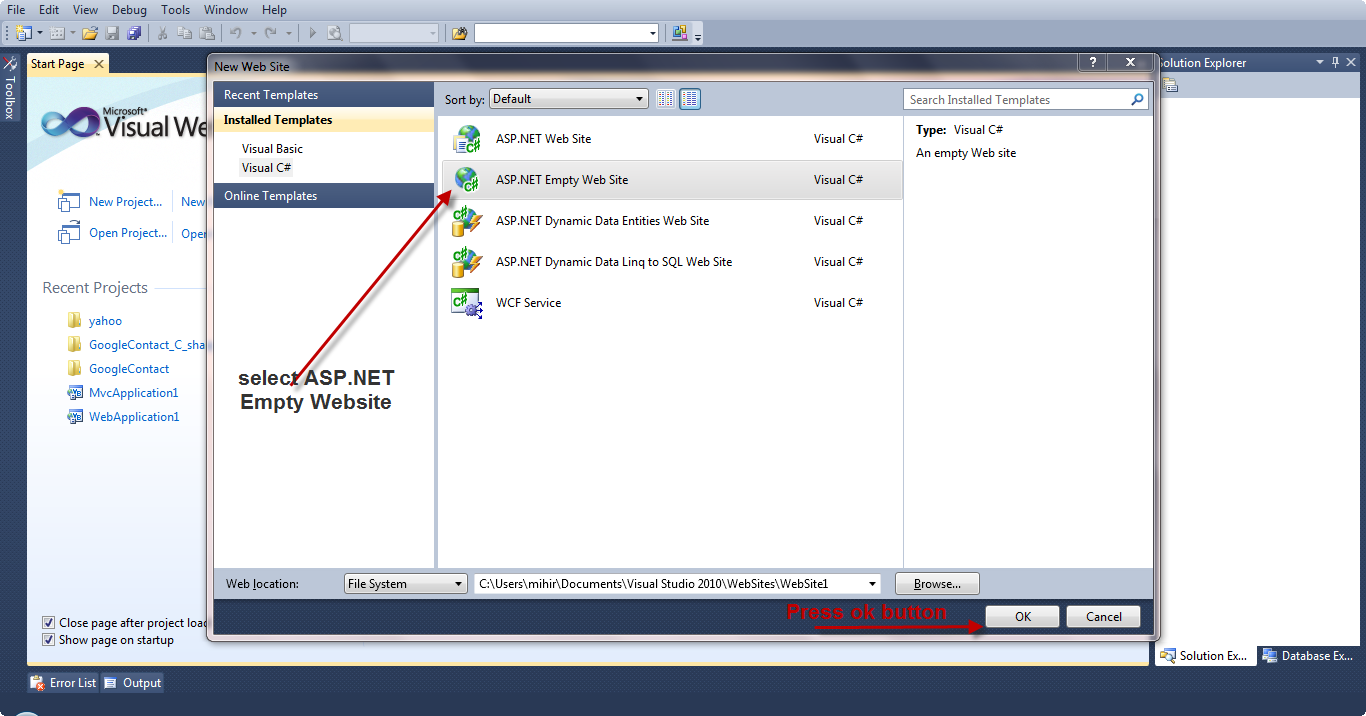
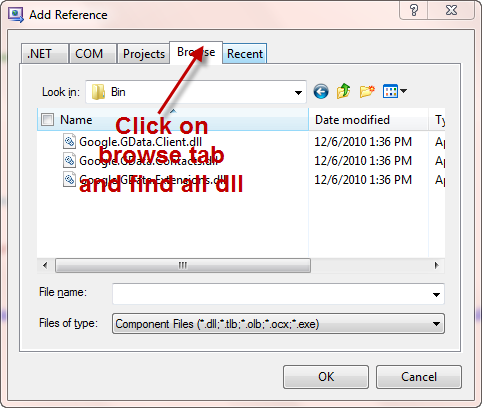
Now,you need to do is find following DLLs from the above path.
1) Google.GData.Client.dll
2)Google.GData.Contacts.dll
3)Google.GData.Extensions.dll
Right click on your project in solution explorer and click on Add References as follow
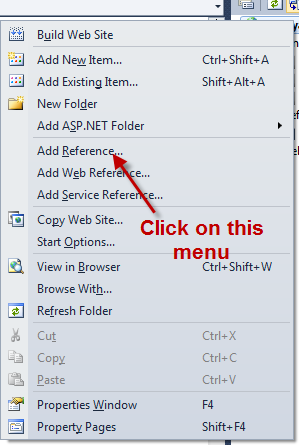
Now go to browse tab and import required DLLs which are listed above.
Now, add one page and name it getallcontacts.aspx and add simple gridview in that
page.
Go to page load event. Here I am just using simple authentication for user you can
use any from google Authntication API.
First import following things as follow.
using Google.GData.Client;
using Google.GData.Extensions;
using Google.GData.Contacts;
using Google.Contacts;
Above namespaces are used for using Google API in our website/project.
So now on page load write following code. I am also going to explain each and every
line.
First I am using simple authentication for username / password as mentioned above
you can use OAuth authentication for safety and user trust.
RequestSettings rs = new RequestSettings("ApplicationName", "test@gmail.com", "password");//Application Name,Username,password
ContactsRequest cr = new ContactsRequest(rs);//Request all contacts
rs.AutoPaging = true;//Allow autopaging
Feed<Contact> f = cr.GetContacts();//Get all contacts
So in first line we are doing settings in which we are passing username and password
and application name as perameters. In application name you can give any.
ContactsRequest cr = new ContactsRequest(rs);//Request all contacts
This line will request all contacts from the particular user.
rs.AutoPaging = true;//Allow autopaging
If there are more than 25 contacts you will not able to fetch it so from the above
line we can fetch all the contacts from that particular user.
Feed<Contact> f = cr.GetContacts();//Get all contacts
Now we can get all contacts in FEED object.
Now we are trying to get all this contacts in Gridview so for that we can make dynamic
data table and store into it. Then bound it to the Gridview. Following code is
just used for making datatable and I am initializing columns here.
DataTable dt = new DataTable();
DataRow dr;
dt.Columns.Add("Name");
dt.Columns.Add("Home Emails");
dt.Columns.Add("Work Emails");
dt.Columns.Add("Other Emails");
dt.Columns.Add("Home Phone");
dt.Columns.Add("Work Phone");
dt.Columns.Add("Other");
Here I have just taken only few fields you can fetch any of them like address , birthrate
etc.
So now our table is ready now we are suppose to fetch single contact extract all
details of it and insert this into datatable.
foreach (Contact ex in f.Entries)
{
dr = dt.NewRow();
Name n = ex.Name;
dr[0] = n.FullName;
string homeemail = "";
string workemail = "";
string otheremail = "";
string homephone = "";
string workphone = "";
string otherphone = "";
foreach (EMail email in ex.Emails)
{
if (email.Home == true)
{
if (homeemail.Equals(""))
{
homeemail += email.Address;
}
else
{
homeemail += ",";
homeemail += email.Address;
}
}
if (email.Work == true)
{
if (workemail.Equals(""))
{
workemail += email.Address;
}
else
{
workemail += ",";
workemail += email.Address;
}
}
else
{
if (otheremail.Equals(""))
{
otheremail += email.Address;
}
else
{
otheremail += ",";
otheremail += email.Address;
}
}
dr[1] = homeemail;
dr[2] = workemail;
dr[3] = otheremail;
}
}
Explanation Line by line
foreach (Contact ex in f.Entries)
{
dr = dt.NewRow();
Name n = ex.Name;
dr[0] = n.FullName;
string homeemail = "";
string workemail = "";
string otheremail = "";
string homephone = "";
string workphone = "";
string otherphone = "";
So first line of code is foreach loop which will extract single contact from all
contacts which are in FEED object
Now we are suppose to create new line for each contact record so I’ve created new
row.
Name n = ex.Name;
dr[0] = n.FullName;
This line will extract name form the contact and will set this in first column of
datatable
Now rest of the variable I’ve created because it might be possible that contact has
more than one same email address like (work, other, home) so we can get each
in one column.
Now first we will extract email address from contact.
foreach (EMail email in ex.Emails)
{
if (email.Home == true)
{
if (homeemail.Equals(""))
{
homeemail += email.Address;
}
else
{
homeemail += ",";
homeemail += email.Address;
}
}
So for second foreach loop we will extract all email address of the contacts.
Now we will separate each email address of same category with , .
So rest of code is as same for work,other and following line is filling value to the columns
dr[1] = homeemail;
dr[2] = workemail;
dr[3] = otheremail
The next line as same as above but difference is I’ve used it for phone number
//Extract Phone Numbers
foreach (PhoneNumber ph in ex.Phonenumbers)
{
if (ph.Home == true)
{
if (homephone.Equals(""))
{
homephone += ph.Value;
}
else
{
homephone += ",";
homephone += ph.Value;
}
}
else if (ph.Work == true)
{
if (workphone.Equals(""))
{
workphone += ph.Value;
}
else
{
workphone += ",";
workphone += ph.Value;
}
}
else
{
if (otherphone.Equals(""))
{
otherphone += ph.Value;
}
else
{
otherphone += ",";
otherphone += ph.Value;
}
}
dr[4] = homephone;
dr[5] = workphone;
dr[6] = otherphone;
}
dt.Rows.Add(dr);
}
GridView1.DataSource = dt;
GridView1.DataBind();
}
In add add this row to the table and finally bind that table to gridview and call
databind method.
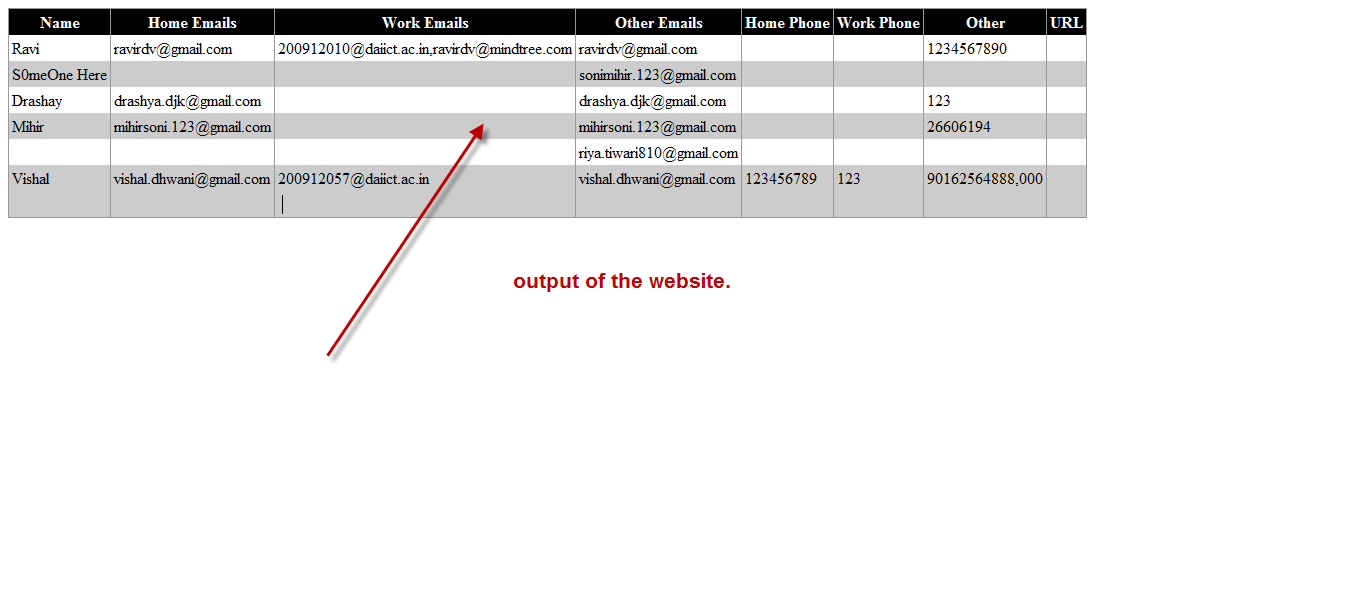
Your output will be as following screen shot.
Download sourcecode from HERE