SharePoint Tip / Thought of the Day WebPart
I found there is a common functionality for SharePoint site Tip / thought of the day. I created a tip webpart, that will provide you with an out of the box solution. Many of the webparts available in market are for pay. I am sharing this webpart for free.
I found there is a common functionality for SharePoint site is Tip / thought of the
day. I had created a tip webpart, that will provide you the out of the box solution.
Many of the webparts available in market, but that is paid. I am sharing with
you all people this webpart free.
The "Thought / Tip of the Day" Web Part selects a random item from the
specified SharePoint Custom List or a selected RSS Feed and displays a picture,
a title and a thought/tip.
The Web Part can be used with WSS 3.0, MOSS 2007 and SharePoint 2010.
You can configure the following web part properties:
• the SharePoint list containing the thoughts / tips
• RSS Feed URL for external thoughts / tips
• the List fields corresponding to the picture, title and thoughts / tips
• a picture (Optional)
• show a new thoughts / tips every day or on every page refresh
This allows you to display random data contained in any SharePoint List by specifying
the desired SharePoint List name and the desired list column names.
Installation Instructions:
1. download the Thought / Tip of the Day Web Part wsp file
2. Install the wsp file and deploy to server farm.
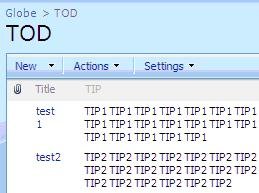
3. If you decide to create a new SharePoint "Thought / Tip of the Day"
List to store the Tip of the Day entries, create a new SharePoint List anywhere
in the SharePoint site collection. The list needs at least the following 2 columns
to hold the entries
-Title
-TIP
4.
5. Configure the following Web Part properties in the Web Part Editor "Miscellaneous"
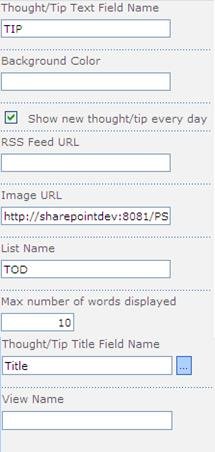
pane section as needed:
1- Thought/Tip Text Field Name: Enter the Column name that contains the Thought /
TIP.
2- Background Color: To set the desired Web Part Background color, enter either a
HTML color name (as eg. "red") or a hexadecimal RGB color value. Leave
this field empty if you don't want to use a specific background color.
You can alternativley enter the name of a List column that holds an individual color
setting for each item.
3- Show new thought/tip every day: shows a new thought / tip on every day when clicked.
Otherwise, a new thought / tip is displayed on every page refresh.
4- RSS Feed URL: If you want to display a daily thought / tip using an RSS Feed (as
opposed to fetching thoughts / tips stored in a SharePoint List), enter the URL
of the external RSS feed. You can leave all the above fields empty in this case.
5- Image URL: Enter the SharePoint URL of the desired image to be display.
6- List Name: Enter the desired SharePoint List name.
7- Max number of words displayed: limits the number of words to be display in the
web part. If the thought / tip word count exceeds this limit, the thought / tip
is truncated and a … (more) link is displayed.
8- Site Name: Enter the name of the site that contains the SharePoint List holding
the thoughts / tips:
- leave this field empty if the Library in the current site
(eg. the Web Part is placed in the same site)
- Enter a "/" character if the Library is contained in the top site
- Enter a path if the Library in in a subsite of the current site (eg. in the form
of "current site/subsite")
9- Thought/Tip Title Field Name: Enter the desired Library Column name that contains
the titles.
10- View Name: Optionally enter the desired List View of the list specified above.
A List View allows you to specify specific data filtering and sorting. Leave
this field empty if you want to use the List default view.
I posted this article also on codeplex http://tod.codeplex.com/
If you have
any issues or suggestions then please log discussion thread on http://tod.codeplex.com/discussions
Download Web Part from my blog
Download Web Part (eggheadcafe)
Download Web Part (codeplex)
Web part can be use with SharePoint 2007 or SharePoint 2010.
For
latest updates, visit my blog http://stsadm2010.blogspot.com/
By Vivek Jagga Popularity (3312 Views)