Microsoft Excel - Need help with creating a due date formula in excel

Asked By Nicole Lang-Thervil on 15-Sep-08 04:04 PM

Hi all,

I'm creating an Excel spreadsheet and in Column C I have entered in the date an issue was opened.  I would like to create a formula for Column D that would have a 30 day due date for that open issue date, and then a formula Column D that would have a 60 day due date for that open issue date.  These dates would exclude weekends and holidays.  Also, how would I be able to have the 30-day due date turn a color when that date is met and the 60-day due date turn a color when that date is met?

Thanks so much for any info.


Nicole


use workday function

Partha Mandayam replied to Nicole Lang-Thervil on 15-Sep-08 04:36 PM
This can be done with the Workday function. To use the workday function you need to install the Analysis pak add-in. Click Tools/Add-ins and choose "Analysis pak"
formula for column d=workday(c1,30) - this will be 30 working days from c1
workday will return a number. So you should format d1 as "date" so it displays correctly.
formula for column e=workday(c1,60)
You can change the colors using conditional formatting.
Keep the cursor in cell d1.
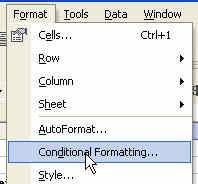
Choose format/Conditional formatting
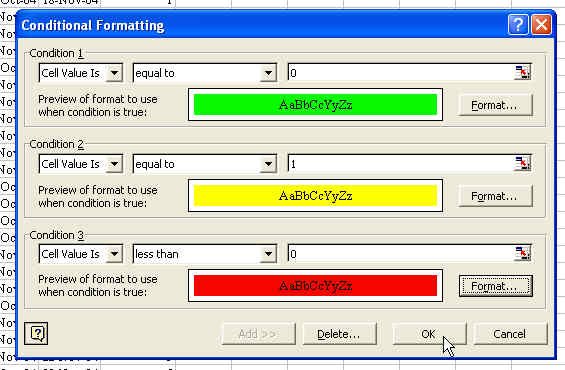
Choose cell value - is equal to - in the third dropdown type =today(). Then click Format and choose red color. This will make the color of the cell red when the due date is reached.
For more information on the workday function see this link

http://blogs.techrepublic.com.com/msoffice/?p=623

Formula worked!

Nicole Lang-Thervil replied to Partha Mandayam on 15-Sep-08 05:04 PM

Thanks Partha,

The formula worked!  One more question, how do I paste a formula to the column D and E but not have anything show up in the columns until a date is entered into Column C?  Right now I only have three issues entered with more to come, so I copied the formula created in the D1 and did a Paste Special and selected Formulas to the remaining rows of the column.  Now, it is just showing a date in those empty rows.  I want these rows to appear blank until something is entered in the Open Issues Column C that would then fill in the 30 day and 60 day due dates.  Thanks so much for your help.


Nicole


use len function

Partha Mandayam replied to Nicole Lang-Thervil on 15-Sep-08 05:36 PM
use the len function to check if some value is entered

You could have a formula like =IF(LEN(C1),WORKDAY(C1,-30),"")
this will only evaluate the formula if c1 is not blank
this will prevent the ugly #NUM! error when no data is entered

Try this
ram kumar replied to Nicole Lang-Thervil on 15-Sep-08 10:04 PM

Hi,


Here is an Excel worksheet with all of the scheduled tasks that have to be completed at a department. The worksheet lists a piece of equipment, the maintenance to be performed, how often it should be performed, and the next due date.
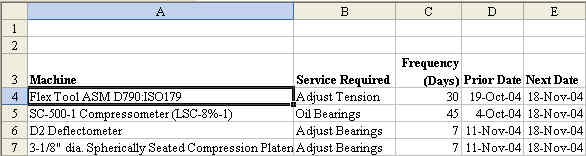
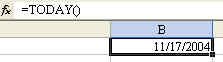
1. It is possible to add a worksheet function to the top of the worksheet that will calculate the current day. Enter the =TODAY() function at the top of the worksheet. This will calculate to show the current day each time the worksheet is opened.
2. Next, you can add a column to the database that subtracts Today from the Due Date in order to figure out how many days away the due date is. Important concept: be sure to hit the F4 key when you point to the Today function.
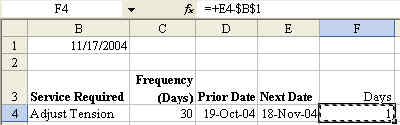
3. Copy the formula down by double-clicking the fill handle.

4. Cool Trick: Set up a Conditional Format that will use three colors:
  • Tasks Due today in Green
  • Tasks Due tomorrow in Yellow
  • Tasks overdue in Red

    Once the format is set up in one cell, follow these steps: 5. Copy the cell with Ctrl+c

    6. Highlight the other cells

    7. Edit - Paste Special - Formats - OK
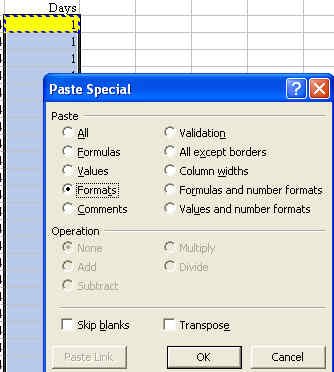
    Result: You can quickly see at a glance which items are due today.
Need help with creating a due date formula in excel: solution
Perry replied to Nicole Lang-Thervil on 16-Sep-08 02:36 AM

Hi,

Cell A2 = A1- (4*7)
Cell A3 = A1- (8*7)
Cell A4 = A1 - (21*7)

where A1 contains the due date.

If it's Access then you need the DateAdd function

eg DateAdd("w", -4, [DueDate]) etc

OR you can write the code

Function AddOutLookTask()
         Dim appOutLook As Outlook.Application
         Dim taskOutLook As Outlook.TaskItem
         Set appOutLook = CreateObject("Outlook.Application")
         Set taskOutLook = appOutLook.CreateItem(olTaskItem)
      With taskOutLook
          .Subject = "This is the subject of my task"
          .Body = "This is the body of my task."
          .ReminderSet = True
          .ReminderTime = DateAdd("n", 2, Now)  ' Set to remind us 2
                                                ' minutes from now.
          .DueDate = DateAdd("n", 5, Now)       ' Set the due date to
                                                ' 5 minutes from now.
          .ReminderPlaySound = True
           'add the path to a .wav file on your computer.
          .ReminderSoundFile = "C:\Win95\media\ding.wav"
          .Save
      End With
     End Function

-Paresh

Victor R replied to Nicole Lang-Thervil on 08-Apr-12 04:09 PM
Hi All:

I have to create a due date using the following example below in excel.

LAST SEEN CODE DUE BY:
3/8/12 S-RV1

Using my last seen date (3/8/12) plus my code (S-RV1) for the due date to be 30 days in the future ( in this case shown -4/8/12)
If my code changes to (RV1) my due date have to be 60 days in the future in my example new date will be 5/8/12.

Can anyone help Please - I need to be work efficient here.

Thanks!