hi
use this example
http://quickstarts.asp.net/QuickStartv20/util/classbrowser.aspx?assembly=System.Web%2c+Version%3d2.0.3600.0%2c+Culture%3dneutral%2c+PublicKeyToken%3db03f5f7f11d50a3a&namespace=System.Web.UI.WebControls&class=TreeView
The ASP.NET
TreeView control is a powerful server-control for
rendering TreeView UI, as shown in the figure below. It supports a
variety of programming models, from statically-defined trees, to
dynamically constructed trees, to databound trees. The TreeView's
rendering is fully customizable, allowing for a wide-range of
look-and-feels for the control. The TreeView supports both
postback-style events and simple hyperlink navigation, as well as a
unique event handling model that allows data to be retrieved directly
from a client without requiring a server postback. It also supports
rendering on a variety of browsers, and can take advantage of up-level
capabilities, such as client-script on later desktop browser versions.
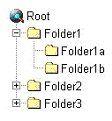
The statically-defined tree is the simplest form of the TreeView,
demonstrated below. Note that the persistence format for the TreeView
intuitively resembles the hierarchical structure of the final rendered
tree.
  <asp:TreeView ExpandDepth="1" runat="server">
    <Nodes>
      <asp:TreeNode Text="Employees">
        <asp:TreeNode Text="Bradley" Value="ID-1234" />
        <asp:TreeNode Text="Whitney" Value="ID-5678" />
        <asp:TreeNode Text="Barbara" Value="ID-9101" />
      </asp:TreeNode>
    </Nodes>
  </asp:TreeView>
Each node in the Tree is represented by a name/value pair (not necessarily unique), defined by the
Text and
Value properties of
TreeNode,
respectively. The text of a node is rendered, whereas the value of a
node is not rendered and is typically used as additional data for
handling postback events. This example also uses the
ExpandDepth property of TreeView to automatically expand the tree 1 level deep when it is first rendered.
In addition to Text/Value pairs, TreeNode exposes
NavigateUrl and
Target
properties for defining a hyperlink to navigate and a window/frame
target, respectively. TreeView itself also exposes a Target property,
for the common case where it should be the same value for all TreeNodes.
The hyperlink will be followed when the node's text is clicked, as
demonstrated in the example below.
  <asp:TreeView runat="server">
    <Nodes>
      <asp:TreeNode Text="My Computer">
        <asp:TreeNode Text="Favorites">
          <asp:TreeNode Text="News">
            <asp:TreeNode Text="MSN" NavigateUrl="http://www.msn.com"/>
            <asp:TreeNode Text="MSNBC News" NavigateUrl="http://www.msnbc.msn.com"/>
          </asp:TreeNode>
        </asp:TreeNode>
      </asp:TreeNode>
    </Nodes>
  </asp:TreeView>
The example below shows a simple statically-defined TreeView that uses NavigateUrl for navigation.
VB TreeView
http://quickstarts.asp.net/QuickStartv20/aspnet/samples/ctrlref/navigation/TreeView/treeview01_simple_vb.aspx
http://quickstarts.asp.net/QuickStartv20/util/srcview.aspx?path=%7E/aspnet/samples/ctrlref/navigation/TreeView/TreeView01.src
The ASP.NET TreeView is capable of many different appearances using
flexible customization of images and styles, as well as properties of
the control that specify custom UI options. The visual elements of a
TreeView are labelled in the figure below.
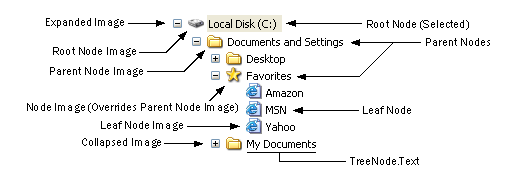
The TreeView consists of three basic node types: root nodes, parent
nodes, and leaf nodes. A root node is any node with child nodes that
has a null Parent property in the TreeView's Nodes collection; it is a
top-level parent node in the tree. A parent node is any node in the
TreeView's Nodes collection that has child nodes underneath it in the
hierarchy. A leaf node is any node in the TreeView's Nodes collection
that has no child nodes; it is neither a root node nor a parent node.
The TreeView exposes custom
TreeNodeStyle properties for each node type (
RootNodeStyle,
ParentNodeStyle, and
LeafNodeStyle), each of which has an
ImageUrl
property used for defining an icon for the node type. These images are
rendered to the left of the node text, as shown in the figure above.
Each TreeNode may selectively override the default image for its node
type using the
ImageUrl property on the
TreeNode object.
The TreeView also exposes
CollapseImageUrl and
ExpandImageUrl
properties for the expanded and collapsed indicators of the TreeView,
usually represented by plus and minus icons. Similarly, a
NoExpandImageUrl
property is provided for rendering next to nodes that have no children.
If not specified, these properties default to built in resource images
provided by the TreeView. The default images may be turned off using
the TreeView
ShowExpandCollapse boolean property.
VB TreeView Images
http://quickstarts.asp.net/QuickStartv20/aspnet/samples/ctrlref/navigation/TreeView/treeview02_images_vb.aspx
http://quickstarts.asp.net/QuickStartv20/util/srcview.aspx?path=%7E/aspnet/samples/ctrlref/navigation/TreeView/TreeView02.src
The
TreeNodeStyle properties for each node type (RootNodeStyle,
ParentNodeStyle and LeafNodeStyle) are also used to customize fonts,
colors, and other style information for nodes. The RootNodeStyle,
ParentNodeStyle, and LeafNodeStyle style properties override any
settings on the
NodeStyle property, which applies to all node types. A node can also have a different style applied when it is selected, i.e. when
TreeNode.Selected = true. When a node is selected, the
SelectedNodeStyle
overrides any corresponding unselected style properties for a node.
Selection is discussed in a later topic below. Lastly, the
HoverNodeStyle
defines the properties to apply when a client mouse cursor hovers over
the tree node (applies to script-capable clients only). Style
properties are merged in the following order of precedence:
- NodeStyle
- RootNodeStyle, ParentNodeStyle, or LeafNodeStyle
- SelectedNodeStyle
- HoverNodeStyle
Because each tree node is ultimately rendered in a table,
TreeNodeStyle inherits from the base
Style class, and additionally defines three new properties:
| Property |
Description |
| NodeSpacing |
Defines the space, in pixels, between the node and the node above and below it in the rendered output. |
| VerticalPadding |
Defines the space, in pixels, between the top and bottom of the node text and border around the text. |
| HorizontalPadding |
Defines the space, in pixels, between the left and right of the node text and border around the text. |
| ChildNodesPadding |
Defines the space, in pixels, between
the last child node of an expanded parent node and the sibling node
immediately following this node. |
TreeView's
NodeIndent property also defines the amount of
right-indentation between each node's left-edge and its parent node's
left-edge. The effect of these style properties on the node rendering
is illustrated in the figure below.

The following example demonstrates the use of several TreeView style
properties. Note that RootNodeStyle is merged with the settings for
NodeStyle and HoverNodeStyle is merged with both RootNodeStyle and
NodeStyle.
VB TreeView Styles
http://quickstarts.asp.net/QuickStartv20/aspnet/samples/ctrlref/navigation/TreeView/treeview03_styles_vb.aspx
http://quickstarts.asp.net/QuickStartv20/util/srcview.aspx?path=%7E/aspnet/samples/ctrlref/navigation/TreeView/TreeView03.src
TreeView Lines. The TreeView has the ability to render lines
connecting tree nodes, using a series of pre-rendered images. These
line images are generated by design-time programs such as Microsoft
Visual Studio, which take the following parameters as input, rendering a
real-time preview of the TreeView lines:
- Line Style (dashed, dotted, or solid)
- Line Width (in pixels)
- Line Color
- Line Image Width
- Line Image Height
- CollapseImageUrl
- ExpandImageUrl
The line designer generates several images that can be tiled to connect
tree nodes. The images are saved to a web-accessible location, for
example
~/MyApp/Images/TreeViewLines, and this location is then specified as a relative url on the TreeView's
LineImagesFolderUrl
property. Note that the expanded and collapsed images supplied to the
tree line designer are rendered in the line images next to parent and
root nodes with child nodes.
VB TreeView Lines
http://quickstarts.asp.net/QuickStartv20/aspnet/samples/ctrlref/navigation/TreeView/treeview04_lines_vb.aspx
http://quickstarts.asp.net/QuickStartv20/util/srcview.aspx?path=%7E/aspnet/samples/ctrlref/navigation/TreeView/TreeView04.src
Skillful combinations of styles and images can create extensive
variation in different TreeView renderings. Because many developers may
not be artistically inclined, ASP.NET allows you to apply
Skins to the TreeView control from a
Theme applied to the Page. To set the skin for the TreeView, simply set the
SkinID property to the name of the desired skin in the Theme. The following
example demonstrates a variety of skins applied to the TreeView control:
- Help
- BulletedList
- Arrows
- Contacts
- FAQ
- MSDN
- Inbox
- Events
- TOC
Note that it is also possible to create your own custom themes for the
TreeView and other controls. For more information see the http://quickstarts.asp.net/QuickStartv20/aspnet/doc/themes/default.aspx section of this tutorial.
VB TreeView Themes
http://quickstarts.asp.net/QuickStartv20/aspnet/samples/ctrlref/navigation/TreeView/treeview05_themes_vb.aspx
http://quickstarts.asp.net/QuickStartv20/util/srcview.aspx?path=%7E/aspnet/samples/ctrlref/navigation/TreeView/TreeView05.src
The TreeView also exposes a
LevelStyles collection property, which contains
TreeNodeStyle
objects corresponding to each depth in the tree. For example, the
first style in the collection corresponds to TreeNodes at depth 0, the
second style corresponds to nodes at
depth 1, and so on. Using this collection it it possible to define
several unique styles to differentiate levels in the tree.
VB TreeView Level Styles
http://quickstarts.asp.net/QuickStartv20/aspnet/samples/ctrlref/navigation/TreeView/treeview06_levels_vb.aspx
http://quickstarts.asp.net/QuickStartv20/util/srcview.aspx?path=%7E/aspnet/samples/ctrlref/navigation/TreeView/TreeView06.src
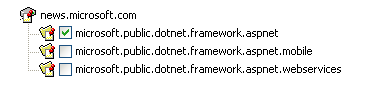
Another custom rendering feature of the TreeView is the ability to
render checkboxes within each node (between the node text and image),
shown in the figure below.
The TreeView
ShowCheckBoxes property enables CheckBoxes for
different tree node types (root, parent, leaf, all, or none). An
individual TreeNode may override this default using its own TreeNode
ShowCheckBox boolean property. The TreeNode
Checked property is used to check or uncheck the node's checkbox, either declaratively or in code. The TreeView
CheckedNodes collection may be used to enumerate all checked nodes in the TreeView, as demonstrated in the example below.
The TreeView
CheckedChanged event can also be handled, and will
be fired whenever the checked state of a TreeNode's CheckBox changes
(the tree node is passed in the EventArgs parameter for the event).
VB TreeView CheckBoxes
http://quickstarts.asp.net/QuickStartv20/aspnet/samples/ctrlref/navigation/TreeView/treeview07_check_vb.aspx
http://quickstarts.asp.net/QuickStartv20/util/srcview.aspx?path=%7E/aspnet/samples/ctrlref/navigation/TreeView/TreeView07.src
In addition to navigation using
NavigateUrl the TreeView supports postback-style selection when TreeNode objects
have a
Value property set. The TreeView
SelectedValue property exposes the value of the currently selected
TreeNode. The
SelectedNode.ValuePath property exposes the values of all TreeNodes leading to the selected node, separated
by
PathSeparator character. The example below demonstrates these properties.
VB TreeView Selection
http://quickstarts.asp.net/QuickStartv20/aspnet/samples/ctrlref/navigation/TreeView/treeview08_select_vb.aspx
http://quickstarts.asp.net/QuickStartv20/util/srcview.aspx?path=%7E/aspnet/samples/ctrlref/navigation/TreeView/TreeView08.src
TreeView exposes a variety of events you can use to execute custom code when the user interacts with the tree.
For example, The
TreeNodeExpanded and
TreeNodeCollapsed events are raised when a TreeNode is expanded or collapsed.
The
SelectedNodeChanged event is raised when a TreeNode is selected interactively from the client.
VB TreeView Events
http://quickstarts.asp.net/QuickStartv20/aspnet/samples/ctrlref/navigation/TreeView/treeview09_events_vb.aspx
http://quickstarts.asp.net/QuickStartv20/util/srcview.aspx?path=%7E/aspnet/samples/ctrlref/navigation/TreeView/TreeView09.src
TreeView supports populating nodes on-demand when a node is expanded from the client. This allows you to
only send a subset of the total nodes to the client and then continue to retrieve additional data for expanded
nodes as the user interacts with the TreeView, which can result in an overall performance gain for your page.
To populate nodes on demand, set the
PopulateOnDemand property of TreeNode for nodes without children
that should be populated when the node is expanded. Then you handle the
TreeNodePopulate
event to write
logic for populating the node. This event passes a reference to the
node that was expanded in the event args. You can then programmatically
populate the child nodes for this
node, and they will be returned to the client rendering.
TreeView supports two modes for populating on-demand, configured by the
PopulateNodesFromClient
property. When set to true (the default), the TreeView executes
client-side
callbacks to retrieve the nodes from the server event, without posting
back the entire page. This mode is only supported on browsers that
support client callbacks, indicated by browser
capabilities. When PopulateNodesFromClient is set to false, the
TreeView submits a normal postback to raise the server event to populate
nodes.
The following example demonstrates a TreeView populated on demand to
show the file system for the application that contains this sample. The
Value for each TreeNode contains the virtual path to each file or
directory, so it does not render fully-qualified paths to the client
browser (a security risk).
The TreeNodePopulate event performs an
HttpRequest.MapPath
on the virtual path to obtain the full path on the server. It also
verifies that the
requested path corresponds to a file or directory under the current
application root, to prevent spoofing of the path from the client. It
is important to
realize that callback arguments are not protected from tampering on the
client, so you need appropriate logic in your TreeNodePopulate event
handler to
validate that the arguments contain expected values.
VB Populating TreeView On Demand
http://quickstarts.asp.net/QuickStartv20/aspnet/samples/ctrlref/navigation/TreeView/treeview10_ondemand_vb.aspx
http://quickstarts.asp.net/QuickStartv20/util/srcview.aspx?path=%7E/aspnet/samples/ctrlref/navigation/TreeView/TreeView10.src
This next example demonstrates using the TreeView PopulateOnDemand feature to programmatically create
TreeNodes from a relational database. Note that the event handler must check the depth of the parent
node that was expanded in order to determine the database query to execute to retrieve nodes.
VB Populating TreeView from a Database
http://quickstarts.asp.net/QuickStartv20/aspnet/samples/ctrlref/navigation/TreeView/treeviewdatabase_vb/treeview11_database_vb.aspx
http://quickstarts.asp.net/QuickStartv20/util/srcview.aspx?path=%7E/aspnet/samples/ctrlref/navigation/TreeView/TreeView11.src
Although you can populate nodes both declaratively and programmatically from code, you can also data bind a TreeView
control to a hierarchical data source control by setting the
DataSourceID property. When bound to a data source, the TreeView automatically populates
TreeNodes from the nodes in the data source. ASP.NET includes two hierarchical data source control in the box: the
XmlDataSource control and
SiteMapDataSource control.
When bound to a hierarchical data source, the TreeView must map the properties of data nodes to the properties of
TreeNode objects. When no such mapping exists, the TreeView simply renders the Name of each data node as the node Text.
For XmlDataSource, this results in the TreeView rendering the structure and element names in the underlying XML data, as
shown in the example below.
VB Binding TreeView to an XML File
http://quickstarts.asp.net/QuickStartv20/aspnet/samples/ctrlref/navigation/TreeView/treeview12_xml_vb.aspx
http://quickstarts.asp.net/QuickStartv20/util/srcview.aspx?path=%7E/aspnet/samples/ctrlref/navigation/TreeView/TreeView12.src
To give the TreeView a more meaningful rendering, you can specify individual data bindings for nodes in the tree.
TreeNodeBinding objects may
be added to the TreeView's
Databindings collection for the
purpose of defining how the fields of hierachical data items are mapped
to TreeNode properties.
There are two key properties of TreeNodeBinding that determine the set
of hierarchical data items to which the binding applies. The
DataMember property
specifies the type of data item, or in the case of XML data, the element name for which a binding applies. The
Depth
property specifies the depth in
the hierarchy at which the data binding should apply. You can set
either DataMember or Depth, or you can set both of these properties.
For example, to
define data bindings for all
Book elements in a given XML file, set DataMember to "Book". To define bindings for all nodes at depth 1, set
the Depth property to 1. To define bindings for all
Book nodes at depth 1, set both DataMember to "Book" and Depth to 1 on the TreeNodeBinding
object.
Once you have set DataMember or Depth to match a given set of nodes, you
can define additional properties of TreeNodeDataBinding to define how
properties of the data item (or XML node attributes, in the case of XML
data) map to the properties of the TreeNodes that the TreeView control
renders.
For example, the
TextField property defines the name of
property/attribute to use for the Text of the TreeNode. Similarly, the
ValueField property
defines the data item property/attribute to use for the TreeNode Value.
The NavigateUrlField property defines the field/attribute to use for
TreeNode's NavigateUrl,
and so on. You can also specify static values for the TreeNode
properties for a given data binding. For example, to specify that
TreeNodes for
Book elements
have a "Book.gif" image, set the ImageUrl property on the TreeNodeBinding whose DataMember property is set to "Book".
The following example shows a TreeView bound to the same XML data as the
preceding example, with DataBindings defined for specific elements in
the XML hierarchy.
VB TreeView Data Bindings
http://quickstarts.asp.net/QuickStartv20/aspnet/samples/ctrlref/navigation/TreeView/treeview13_xml_vb.aspx
http://quickstarts.asp.net/QuickStartv20/util/srcview.aspx?path=%7E/aspnet/samples/ctrlref/navigation/TreeView/TreeView13.src
The XmlDataSource supports an
XPath property you can use to filter the set of nodes exposed by the data source. In the example below,
the XPath property is set to
Bookstore/genre[@name='Business']/book,
to filter the nodes of the data source to show only those book elements
under the "Business" genre. Be careful to specify correct syntax for
the XPath property; otherwise, the data source may expose no nodes (and
the
asssociated data-bound control will not render).
VB TreeView to an XPath Result
http://quickstarts.asp.net/QuickStartv20/aspnet/samples/ctrlref/navigation/TreeView/treeview14_xml_vb.aspx
http://quickstarts.asp.net/QuickStartv20/util/srcview.aspx?path=%7E/aspnet/samples/ctrlref/navigation/TreeView/TreeView14.src
Note that the TreeView hierarchy exactly matches the hierarchy of the
source XML. Because of this, it is either common to construct XML
specifically for binding to the TreeView or to use an XSL transformation
to "re-shape" the data into an appropriate hierarchy for binding to the
TreeView.
VB TreeView to an XSLT Transformation
http://quickstarts.asp.net/QuickStartv20/aspnet/samples/ctrlref/navigation/TreeView/treeview15_xml_vb.aspx
http://quickstarts.asp.net/QuickStartv20/util/srcview.aspx?path=%7E/aspnet/samples/ctrlref/navigation/TreeView/TreeView15.src
A hierarchical data source control like XmlDataSource associates a unique path to each node in its
hierarchy, in order to serve requests from data-bound controls for nodes at a specific location.
This enables features like TreeView's PopulateOnDemand feature, where nodes from a data source
can be sent down to the client as each node is expanded, instead of sending down all nodes at once. It also
enables you to use this path from page code to configure a data source to show nodes from a
specific location. The path syntax is specific to the type of data represented, and cannot
be constructed from code. However, you can access the data path for a node bound to TreeView
using the TreeNode
DataPath property. Because the XmlDataSource uses XPath expressions
for it's data path syntax, these paths may be assigned to the XPath property of an XmlDataSource
to filter the list of nodes. The example below demonstrates this technique to implement a
master-details scenario using XmlDataSource. There are two XmlDataSource controls, one bound
to the TreeView (master control), and one bound to a DataList (details control). When a TreeView
node is clicked, the DataPath property is retrieved and assigned to the XmlDataSource control
bound to the DataList, in order to display additional information for the specific node that
was clicked.
We will build the master-details scenario is several steps. First, simply bind the TreeView
control to an XmlDataSource that exposes data from an
Events.xml file.
VB XML-based Event Log using TreeView
http://quickstarts.asp.net/QuickStartv20/aspnet/samples/ctrlref/navigation/TreeView/treeview16_evtlog_vb.aspx
http://quickstarts.asp.net/QuickStartv20/util/srcview.aspx?path=%7E/aspnet/samples/ctrlref/navigation/TreeView/TreeView16.src
Next, add
Databindings to the TreeView to associate node properties to TreeNode
properties, and set a
SkinID to customize the style and images for the TreeView.
VB XML-based Event Log using TreeView (DataBindings)
http://quickstarts.asp.net/QuickStartv20/aspnet/samples/ctrlref/navigation/TreeView/treeview17_evtlog2_vb.aspx
http://quickstarts.asp.net/QuickStartv20/util/srcview.aspx?path=%7E/aspnet/samples/ctrlref/navigation/TreeView/TreeView17.src
You can customize the mappings betweeen data nodes and TreeNode objects by handling the
TreeNodeDataBound event. This event gives you a reference to the
DataItem
from the data source, that you can cast to an appropriate type to retrieve properties.
In this case, the DataItem is an XmlNode object.
VB XML-based Event Log using TreeView (TreeNodeDataBound Event)
http://quickstarts.asp.net/QuickStartv20/aspnet/samples/ctrlref/navigation/TreeView/treeview19_evtlog4_vb.aspx
http://quickstarts.asp.net/QuickStartv20/util/srcview.aspx?path=%7E/aspnet/samples/ctrlref/navigation/TreeView/TreeView18.src
Lastly, we finish the master-details scenario by adding a DataList to the page to show the
details for the currently selected TreeNode. The DataList is bound to its own XmlDataSource, and
in the TreeNodeSelected event handler, we obtain the
DataPath property of the selected node
in order to set the
XPath property of the details data source.
VB XML-based Event Log using TreeView (Master-Details)
http://quickstarts.asp.net/QuickStartv20/aspnet/samples/ctrlref/navigation/TreeView/treeview19_evtlog4_vb.aspx
http://quickstarts.asp.net/QuickStartv20/util/srcview.aspx?path=%7E/aspnet/samples/ctrlref/navigation/TreeView/TreeView19.src
Site navigation data is another form of hierarchical data in an ASP.NET application, as described
in the http://quickstarts.asp.net/QuickStartv20/aspnet/doc/ctrlref/navigation/aspnet/doc/navigation/default.aspx
section. In addition to supporting the Site Navigation API in ASP.NET
for programmatic access to site map data, ASP.NET 2.0 also supports
a
SiteMapDataSource control for declarative data binding. When you bind a TreeView control to a SiteMapDataSource,
the Text and Url properties of the site map can be bound to TreeNodes. Although you can
specify a DataBinding collection to establish these bindings, this is not strictly necessary. The TreeView
control automatically binds the Text and NavigateUrl properties of TreeNode to the related
site map properties (this is achieved using the
INavigateUIData interface on
SiteMapNode).
Another feature of TreeView when bound to a SiteMapDataSource is that it automatically sets the
SelectedNode or
SelectedItem property to the current node in the site map.
The example below shows a TreeView bound to a SiteMapDataSource control. Although this example shows the
Databindings collection for demonstration purposes, this is not necessary when you are only binding to the Text
and Url properties of the node.
VB Binding TreeView to SiteMap Data
http://quickstarts.asp.net/QuickStartv20/aspnet/samples/ctrlref/navigation/TreeView/treeview20_sitemap_vb.aspx
http://quickstarts.asp.net/QuickStartv20/util/srcview.aspx?path=%7E/aspnet/samples/ctrlref/navigation/TreeView/TreeView20.src