hi,
You'll find the Backup program by clicking Start, pointing to All Programs, pointing to Accessories, pointing to System Tools, and then clicking Backup. If the Backup or Restore Wizard opens by default, click Advanced mode on the Welcome screen, and the Backup Utility dialog box opens, as shown below.
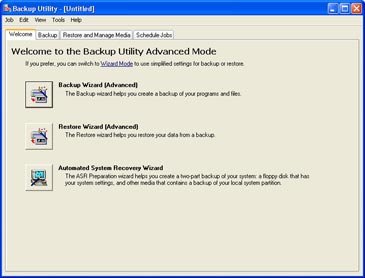
Click the Backup Wizard button. And follow the prompts. In the What to Backup dialog box, select Backup selected files, drives, or network data. In the Items to Backup dialog box, select the folders to be backed up. The network folders will be listed under My Network Places.
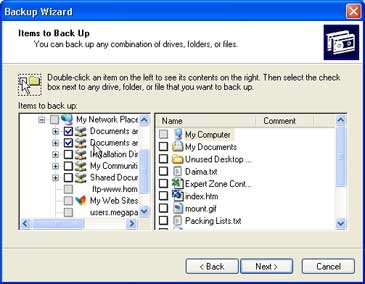
In
the next window, you're prompted for the type of backup (to a tape
drive, a CD-RW drive, a network hard drive). In this case, I'm backing
up to a shared folder on our server. When you're done, the wizard
summarizes your selections.
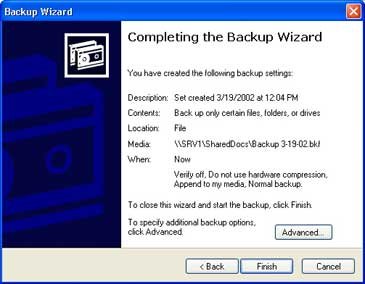
Click the Advanced button to make additional settings. A Normal backup is appropriate under most conditions. In the How to Backup dialog box you're offered an option to Verify data after backup.
Be advised that checking this option does not constitute a true
verification that the backup is good and, more importantly, restorable.
The only real verification is to restore a selection of files to another
location and actually look to be sure they're good. Do this the first
time you do a tape backup and repeat it several times a year.
Windows XP Backup, by default, creates a volume shadow copy
of the volume being backed up. A volume shadow copy is a picture of the
volume at a particular moment in time. That means a computer can be
backed up while files are open and applications running. Files are not
skipped during backup and you don't need to schedule backups when the
computers on your network aren't being used. The volume shadow copy
service allows applications to continue running uninterrupted on the
actual volumes while a shadow copy is made. After the backup is
completed, the shadow copy is deleted.
By default, Windows XP
Professional uses available space on any NTFS volume to store a record
of the differences between the original volume and the shadow copy
volume. If enough disk space isn't available, Windows XP Professional
won't be able to make a volume shadow copy and Backup skips open files.
It's possible that you'll get an error message when enough space isn't
available. In that case, you can turn off the volume shadow copy
service. In the Completing the Backup Wizard dialog box, click the Advanced button. Then select the Disable volume shadow copy
check box in the How to Backup dialog box. In the interests of
efficiency, you can also turn off volume shadow copying if you are
backing up just a few files or routinely back up when the computers on
your network are not in use. You can only turn off Shadow Copy if System
State is not part of backup.
In the When to Backup dialog box, you can set a time for the backup to run or click Set Schedule to specify that the backup be performed at a particular time daily, weekly, or at other intervals.
Hope this will help you