Lounge - Transfering data from iPhone back to iMacHi. My Mac's hard drive recen

Asked By inman James on 16-May-11 09:10 AM
Earn up to 20 extra points for answering this tough question.
Hi. My Mac's hard drive recently crashed and everything is wiped out. I have a new hard disk now. 
My question is: How do I transfer data from my iPhone... back to my Mac? I would like to transfer data from my iCal, iTunes, iPhotos, SMS and contacts.
Would appreciate some advice. It's been a very frustrating experience. I don't want to screw up and end up deleting all my data from my iPhone instead.
Nikhil Mahajan replied to inman James on 16-May-11 11:23 PM

In Mac, you can make use of AFP to access iPhone/iPod Touch via the Finder.

To do this, you have to first install Netatalk via Cydia.

On your jailbroken iPhone, go to Cydia. At the bottom, go to Sections. Navigate to Networking -> Netatalk. Click install on the top-right corner of the screen.

Once you have installed Netatalk, on your Mac desktop, open up Finder, you should find your iPhone entry on the left pane, under the ‘Shared‘ section. Click on it. You should see a blank screen with a ‘Connect As‘ on top of the screen.
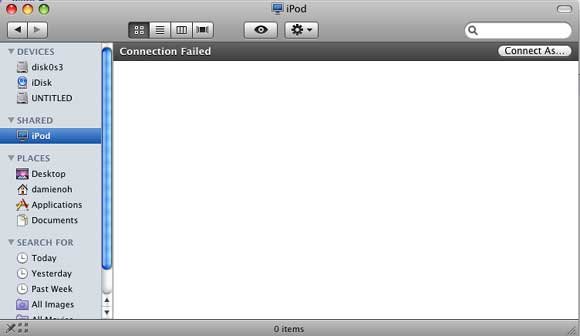
Click on the ‘Connect As‘ and enter the following:

Name: mobile
Password: alpine

For some reason that you can’t find the entry in the Shared section, you can go to Go -> Connect to Server. Under the server address field, enter afp://your-iphone-ip-address. Mine is 192.168.0.102, so I entered afp://192.168.0.102. (You can find your iPhone IP address on Settings->Wi-Fi->Your network connection)

The Connecting to Server window should open up, and then ask for your user name and password.

Fill in the above login credential.

That’s it! You can now access the iPhone straight from Finder!

Most of your personal files will be in private/var/root/Library or private/var/root/Media. And of course installing applications is as easy as dragging the .app into your /Applications folder!

i8 iphone8i replied to Nikhil Mahajan on 18-May-11 03:34 AM
Log-in in to your iTunes account on your new Mac and then sync as normal. You'll be asked if you want to copy stuff from your iPhone to Mac (which you probably want to do) and then you should be able to continue as normal. Remember to authorize your new Mac with your iTunes account as well.
Besides there is a step by step instruction on how to transfer or backup all iPhone datas to iMac.
Hope it can do you a favor.
Ivy cao replied to inman James on 21-May-12 11:06 PM

You can download a new iTunes in your new Mac. And use your iTunes account to log in. Then connect your iphone to Mac and running iTunes. Last, you can transfer your data to your new mac. Surely, you can use a third-party tool-- iPhone to Mac Transfer<a href="#">

http://www.levesoft.com/iPhone-to-mac-transfer.html

</a>
to do these; it’s more convenience than iTunes.