Hi,
you may nee to add the treeview control once
for all in your Toolbox window, then simply drag&drop it onto your
Form. In order to do this, show up the .Net studio Toolbox window, then right click and choose Customize toolbox, then choose the .Net Framework components tab, and browse to the compiled control : TreeViewMS.dll, as in the capture below:
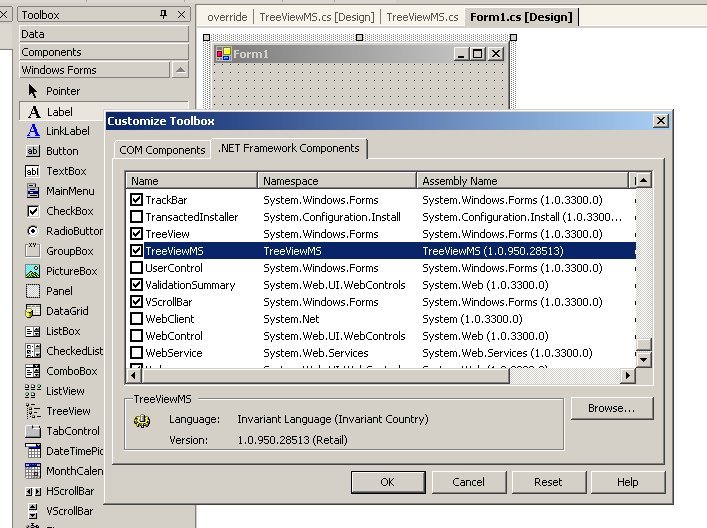
Adding the new treeview control to the VisualStudio .Net toolbox
Once you have added this treeview control in a form, you may start to
use it like the base .Net treeview control. The addition lies in a new
exposed property, SelectedNodes, which returns the collection of selected TreeNode items.
If we take the demo app, which adds selected items in the list view on the right, then code goes like this :
    private TreeViewMS.TreeViewMS treeViewMS1;
    private System.Windows.Forms.ListView listView1;
    ...
    // add selected items from treeview to the listview on the right hand side
    foreach (TreeNode n in treeViewMS1.SelectedNodes)
    {
       listView1.Items.Add( n.Text, n.ImageIndex );
    }
SelectedNodes is also a read-write property. What follows is a sample code that forces the selection of given tree items :
    TreeNode n1 = treeViewMS1.Nodes[0].Nodes[0].Nodes[0]; // valid item from the sample tree
    TreeNode n2 = treeViewMS1.Nodes[0].Nodes[0].Nodes[2]; // valid item from the sample tree
    ArrayList coll = new ArrayList();
    coll.Add(n1);
    coll.Add(n2);
    treeViewMS1.SelectedNodes = coll;
check this for more info
http://www.arstdesign.com/articles/treeviewms.html
http://www.homeandlearn.co.uk/csharp/csharp_s9p8.html
Hope this will help you