Microsoft Word - Macro for del+space

Asked By Lazar on 28-Aug-11 04:24 PM
Hi, need macro that can do next: On every end of line/paragraph is going o do delete and then make space. Reason:
I need text to be from left margine to right margine.
This:
      jhjdsjhsd.
      hgkjhgh, hbjhjhhjb!
      hjnkjnkjncs
      Ajjhhbjhbjuhbcea.
To This:
      jhjdsjhsd. hgkjhgh, hbjhjhhjb! hjnkjnkjncs Ajjhhbjhbjuhbcea.
Tnx
Devil Scorpio replied to Lazar on 28-Aug-11 05:43 PM
Hi Lazar,

Insert a module, then copy & paste the following macro

Sub replace(doc As Word.Document)
With doc.Content.Find
.Text = "^p"
.Replacement.Text = " "
.Forward = True
.Wrap = wdFindContinue
.Format = False
.MatchCase = False
.MatchWholeWord = False
.MatchWildcards = False
.MatchSoundsLike = False
.MatchAllWordForms = False
.Execute replace:=wdReplaceAll
End With
End Sub

Now call this macro in immediate window to get the specified concatenated text
call replace(ThisDocument)

Output:-
jhjdsjhsd. hgkjhgh, hbjhjhhjb! Hjnkjnkjncs Ajjhhbjhbjuhbcea.
Jitendra Faye replied to Lazar on 29-Aug-11 12:20 AM
You can use this steps-


While working with Excel and typing text into the Excel cell, you can always break the line and continue in a new row. To do so, every time you want to break a line,  you would use the shortcut ALT+ENTER.

From time to time though, you might want to reverse this action, remove line breaks and go back to having only one line of text.  There is quite a few ways to do so, one of them is to use Excel find/replace dialog box.  Using this feature is really straightforward, the only problem is that not everyone knows how to type in the line break symbol. The trick here is to press ALT and then enter 010 using the numeric keypad.

As a result you will probably see a small blinking dot (at least that’s how it looks on my computer) in the “Find what:” field.
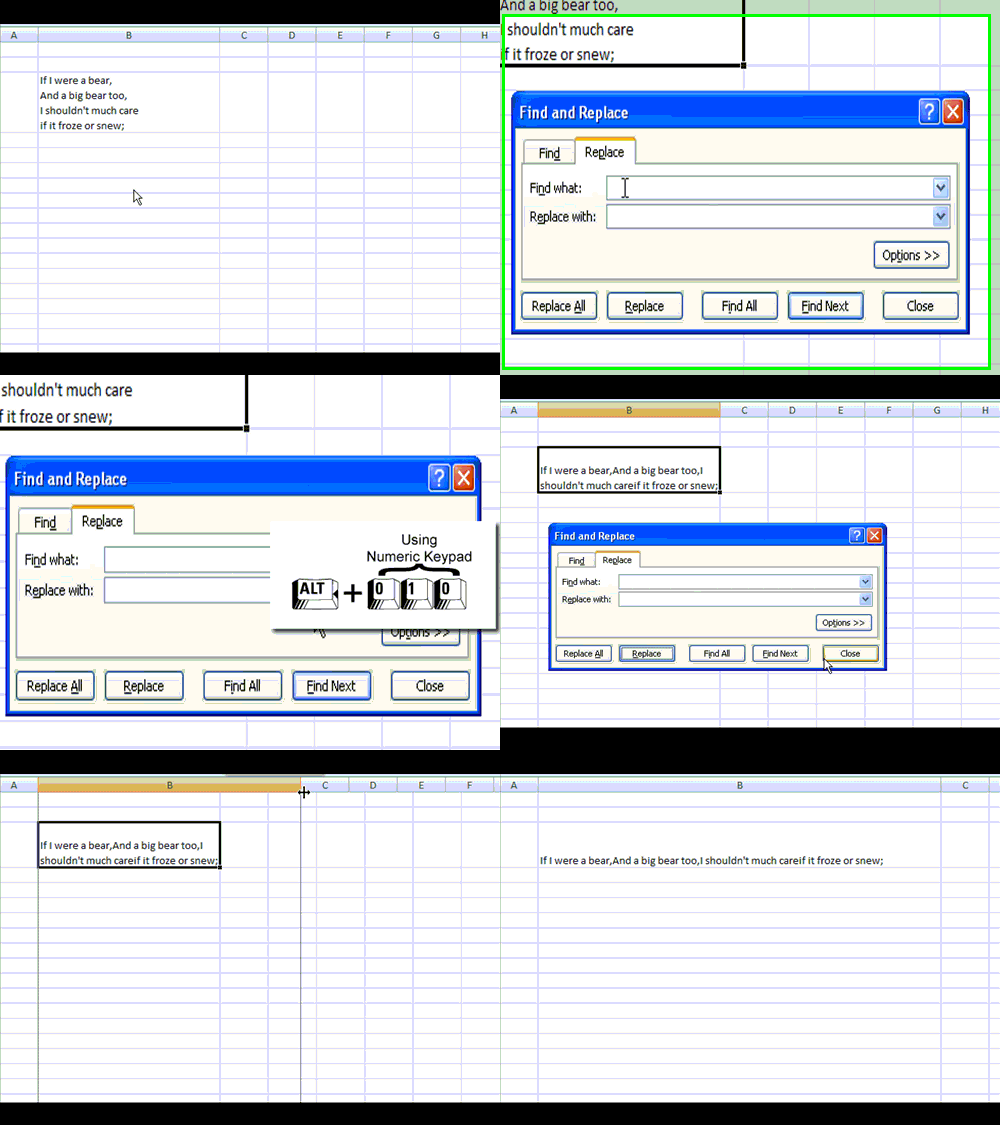
How to remove line breaks from Excel cell

You can leave the “Replace with:” field empty (the line break will then be  simply removed). Or alternatively enter, let’s say, a space there, to replace line break characters with spaces.

If you want to keep the original  multi-line  text untouched, and what you need is to have a copy of the text with removed break lines, you can use Excel function clean which removes all non-printable characters from a string. It seems to do the job 


Try this AND LET ME KNOW.
Anoop S replied to Lazar on 29-Aug-11 02:14 AM
Use this code

Trim Internal Whitespace

Attribute VB_Name = "TrimInternalWhitespace"

Public Sub MAIN()

If Len(WordBasic.[Selection$]()) <= 1 Then
    WordBasic.MsgBox "You must select a block of text before calling this macro.", "Cannot Continue", 48
    GoTo Bye
End If

'change all whitespace
WordBasic.EditReplace Find:="^w", Replace:="", Direction:=0, MatchCase:=0, WholeWord:=0, PatternMatch:=0, SoundsLike:=0, ReplaceAll:=1, Format:=0, Wrap:=0


Bye:

End Sub

reference
http://25yearsofprogramming.com/msword/msword2003/whitespace2003.htm
wally eye replied to Lazar on 31-Aug-11 02:38 PM
If you are just doing this once, you can just use the edit replace:

Find:

^p

Replace:
 

OK, so you can't see the space, but it is there.  I use this all the time for bringing ill-formed text into documents.  The ^p will find the paragraph marks.  A ^t would work for tabs.  I'm not sure what all the characters are, but there is probably a table somewhere...