Try this
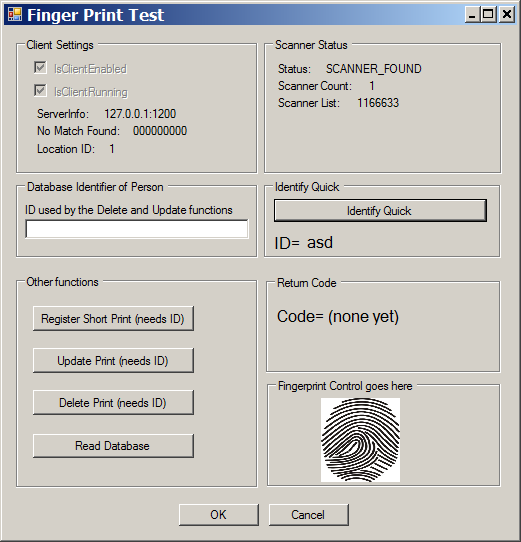
This article presents a first look at the M2SYS Bio-PlugIn™ fingerprint identification Software Development Kit. This SDK gives independent software vendors a relatively straight-forward and robust way of integrating biometric fingerprint recognition into custom applications. A test application is presented, which exercises relevant functions from the SDK. You will need to obtain the M2SYS Bio-Plugin SDK to be able to compile and run the sample code.
Client Verification
Once the BioPlugin Client software is installed and activated, you can verify its basic functionality manually by following these steps:
- Open Command Prompt window (Start -> Run -> "cmd").
- Change to where BioPlugin Client was installed (“cd \Program Files\BioPlugin”).
- Manually call the Single-Finger Scanning window “m2sysplugin.exe IS 0”.
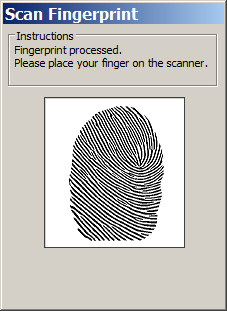
- The fingerprint scanning window will appear in the center of the screen.
- Touch your finger to the fingerprint reader’s scanning surface.
- At the top of the dialog, you will see the message "Fingerprint processed". This indicates that client is communicating with the server.
- If a "Server connection failed" or "Invalid server name" message is displayed, confirm:
- The BioPlugin Server software is running properly by checking the server log file
Detection of the M2Sys Client Software
private const string BiopluginNameInRegistry = "BioPlugInActX Control";
private const string BioPluginKey = @"CLSID\{05E8280C-D45A-494F-AE42-840A40444AFF}";
private static bool IsM2SysBioPluginInstalled()
{
    RegistryKey bioPluginRegistryKey;
    const string bioPluginKeyName = BioPluginKey;
    try
    {
        bioPluginRegistryKey = Registry.ClassesRoot.OpenSubKey(bioPluginKeyName, false);
    }
    catch
    {
        return false;
    }
    if (bioPluginRegistryKey == null)
        return false;
    string name = (string)bioPluginRegistryKey.GetValue(string.Empty);
    if (name == BiopluginNameInRegistry)
        return true;
    return false;
}
The above code is inserted at the start up of your application as shown here:
 Collapse
 | http://www.codeproject.com/Articles/38881/Fingerprint-Reader-Integration-using-the-M2SYS-SDK#
[STAThread]
private static void Main()
{
    Application.EnableVisualStyles();
    Application.SetCompatibleTextRenderingDefault(false);
    if (!IsM2SysBioPluginInstalled())
    {
        MessageBox.Show(Resources.ProgramNeedsM2Sys, Resources.MessageBoxTitle,
                        MessageBoxButtons.OK, MessageBoxIcon.Error);
        return;
    }
    Application.Run(new FingerTestForm());
}
- Client calls to enrol, by using
bioPlugin.RegisterPrintShort(name).
- BioPlugIn ActiveX control displays a modal dialog to register the print.
- User scans in fingerprints.
- Control sends scans to the server.
- Server saves scans in database.
- Control fires the
OnRegister event back to the client application.
- Client application makes a callback to the ActiveX control to retrieve the result property.
The application code below shows how we can make the asynchronous events look synchronous in the application.
Collapse | http://www.codeproject.com/Articles/38881/Fingerprint-Reader-Integration-using-the-M2SYS-SDK#
private readonly ManualResetEvent _eventRecievedInfo = new ManualResetEvent(true);
private void _registerShortButton_Click(object sender, EventArgs e)
{
DoFingerPrintAction(()=>_fpReader.RegisterPrintShort(_enterIdText.Text),
ResultCode.RegisterPrintShort);
}
private void DoFingerPrintAction(Action action, ResultCode resultCode)
{
_currentResult = resultCode;
_eventRecievedInfo.Reset();
action(); WaitForInfo(); }
private void WaitForInfo()
{
for (int i = 0; i < 60; i++) {
Application.DoEvents();
bool gotSignal = _eventRecievedInfo.WaitOne(1000);
if (gotSignal)
{
return;
}
}
}
private void bioPlugin_OnRegister(object sender, EventArgs e)
{
string fromAxControl = bioPlugin.result;
switch (_currentResult)
{
case ResultCode.RegisterPrintShort:
_returnCodeFromRegistration = fromAxControl;
break;
case ResultCode.UpdatePrint:
_returnCodeFromRegistration = fromAxControl;
break;
}
_eventRecievedInfo.Set();
}