Perquisites
• Visual Studio 2012
• Xamarin download
http://xamarin.com/download
Setup trial version
http://docs.xamarin.com/guides/cross-platform/getting_started/beginning_a_xamarin_trial/
• If you have Mac running Mountain Lion or later, follow this link to setup Xamarin
build host
http://docs.xamarin.com/guides/ios/getting_started/installation/windows/#Installation
Calculator WCF service
Yes, you read it right! The WCF service is going to be pretty simple here. It will
have one single Sum function for given two integer values. We will mainly focus
on approach of consuming it in all platform so keeping service part simple.
Create empty Visual Studio solution named XamarinWCF. Add project of type WCF Service
application and name it CalculatorService. Following two snippets back to back
shows ICalculatorService interface and its implementation CalculatorService.
[ServiceContract]
public interface ICalculatorService
{
[OperationContract]
int DoSum(int value1, int value2);
}
Listing 1.0 – ICalculatorService contract
public class CalculatorService : ICalculatorService
{
public int DoSum(int value1, int value2)
{
return value1 + value2;
}
}
Listing 1.1 – CalculatorService
Now at this point, just hit F5 to see the service running over IIS express in your
browser window.

Figure 1.0 – CalculatorService up and running over IIS express
Enable remote access for calculator service
By default, Windows 8 and IIS Express will not accept remote connections. So for
remote devices such as an Android/iPhone or Window Phone 8, we need to make two
changes as one is to edit IIS express config files to allow remote connections
and add firewall rule for the port.
1. Get your local machine's IP address by running ipconfig in command prompt.
In my case it is 192.168.216.1.
2. Locate IIS express config file by running
%userprofile%\documents\iisexpress\config\applicationhost.config.
Alternatively you can right click on the task bar icon of IIS express and choose
show all applications. It would present you with following screen.

Figure 1.1 – Accessing config file from IIS express window
As highlighted in Figure 1.1, you can click on the link to open the applicationhost.config
file and make changes as described later step.
3. Locate the site element with the name as CalculatorService. Under bindings tag,
add entry as highlighted in Listing 1.2.
<site name="CalculatorService" id="8">
<application path="/" applicationPool="Clr4IntegratedAppPool">
<virtualDirectory path="/" physicalPath="C:\Users\...\Documents\NullSkull_Articles\XamarinWCF\CalculatorService" />
</application>
<bindings>
<binding protocol="http" bindingInformation="*:17377:localhost" />
<binding protocol="http" bindingInformation="*:1234:192.168.216.1" />
</bindings>
</site>
Listing 1.2 – Adding binding with IP in applicationhost.config for Calculator service
4. Now configure IIS express to accept incoming connection from the IP we just added
by running following in command prompt. Note that we will need elevated permission
so run command prompt as Administrator.
netsh http add urlacl url=http://10.1.222.48:1234/ user=everyone
5. Last step is to add firewall rule to permit traffic on port 1234 by running following
in command prompt.
netsh advfirewall firewall add rule name="IISExpressWeb" dir=in protocol=tcp
localport=1234 profile=private remoteip=localsubnet action=allow
Now just restart IIS express and run Calculator service again. Now you will be able
to browse it with IP as following:
http://192.168.216.1:1234/CalculatorService.svc
Service agent portable class library
It's time to create our cross platform component "service agent" that
will talk to WCF service and will be used in our iOS, Android and Windows Phone
8 application. Add project of type Portable Class Library to XamarinWCF solution.
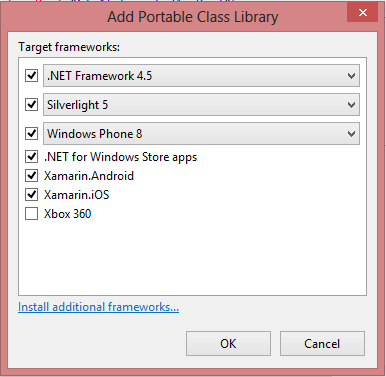
Figure 1.2 – Target framework for ServiceAgent portable class library
As shown in Figure 1.2, we will choose everything as target framework except Xbox
360.
Now we need to create WCF service proxy that we can use in our service agent and
eventually in all mobile client applications. To do so, we will be using Silverlight
WCF proxy generation utility called SLSvcUtil.exe.
This utility is located at: C:\Program Files (x86)\Microsoft SDKs\Silverlight\v5.0\Tools\SLsvcUtil.exe
In elevated command prompt, navigate to this directory and run following command.
slsvcutil.exe http://10.1.222.48:1234/CalculatorService.svc
This will give you CalculatorService.cs file created in the same directory. Copy
that file and paste it into our ServiceAgent project.
Now finally we are all set to code for our service agent class. The whole code for
this class is as following.
using System;
using System.ServiceModel;
using System.Threading.Tasks;
namespace ServiceAgent
{
public class CalculatorServiceAgent
{
private static EndpointAddress endPoint = new EndpointAddress("http://192.168.216.1:1234/CalculatorService.svc");
private static BasicHttpBinding binding;
static CalculatorServiceAgent()
{
binding = CreateBasicHttpBinding();
}
private static BasicHttpBinding CreateBasicHttpBinding()
{
BasicHttpBinding binding = new BasicHttpBinding
{
Name = "basicHttpBinding",
MaxBufferSize = 2147483647,
MaxReceivedMessageSize = 2147483647
};
TimeSpan timeout = new TimeSpan(0, 0, 30);
binding.SendTimeout = timeout;
binding.OpenTimeout = timeout;
binding.ReceiveTimeout = timeout;
return binding;
}
public async static Task<int> DoSum(int value1, int value2)
{
ICalculatorService _client;
try
{
_client = new CalculatorServiceClient(binding, endPoint);
var res = Task<int>.Factory.FromAsync(_client.BeginDoSum, _client.EndDoSum,
value1, value2, null);
await res;
return res.Result;
}
catch (Exception)
{
throw;
}
}
}
}
Listing 1.3 – CalculatorServiceAgent class with async await pattern
Starting from top as per Listing 1.3, first we create constant to hold endpoint url.
The constructor calls method CreateBasicHttpBinding which creates binding object.
Later the method DoSum uses async/await to implement await able method for asynchronous
DoSum operation on the service by invoking BeginDoSum and EndDoSum pair. At this
point, we are all set to create three different mobile applications in iOS, Android
and Windows Phone 8. In second part of this article, we will accomplish that!
Stay tuned.
Source code
Download source code here.
The article part 2 is here.